


Overview
The Sharing and Saving Custom Reports feature allows you to save the parameters of any report you have generated such as date range, display options, and selected mailboxes so that you can quickly run it again in the future without needing to reselect your settings.
This functionality is designed for convenience and consistency, making it easier to access recurring reports such as “Customer Service Mailbox Last Month” or “Weekly Reply Performance.”

Why It Matters
Saved reports streamline your workflow by ensuring:
- Consistency: Each time the report is run, it applies the same filters and metrics.
- Efficiency: No need to repeatedly re-enter parameters for recurring reports.
- Collaboration: Saved reports can be shared with other administrators or viewers.
- Accuracy: Ensures all users are viewing reports built on identical parameters.
Purpose
This feature ensures that users and managers can easily store and retrieve commonly used report setups, reducing administrative overhead and improving reporting accuracy across the organization.
Saving a Custom Report
How It Works
When running any report such as Mailbox Performance Reporting, you will find a Save button located beside the Run Report button. Clicking Save allows you to save the selected parameters for future use.
Example
You have selected the following parameters for a mailbox performance report:
- Mailbox: [email protected]
- Report Period: Last Month
- Display By: Week
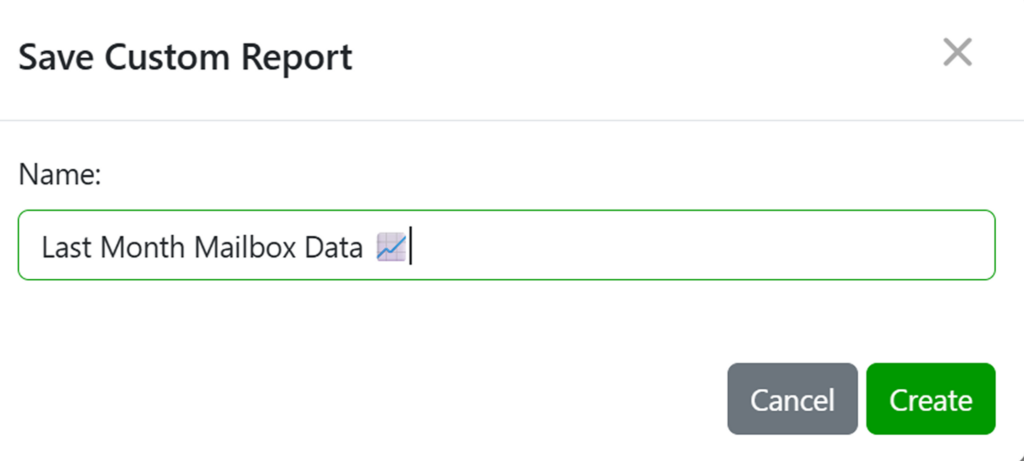
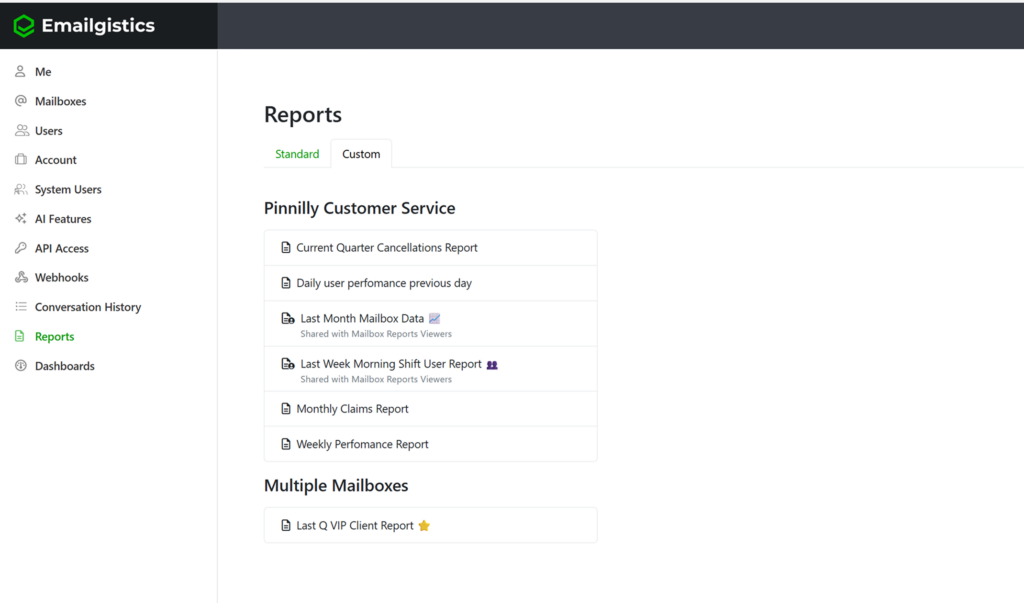
When you save the report, you might name it “Last Month Mailbox Data.”
From that point forward, whenever you open this saved report, it will automatically populate using those same parameters but will dynamically pull the most recent period (in this example, the previous month).
Saved Report Location
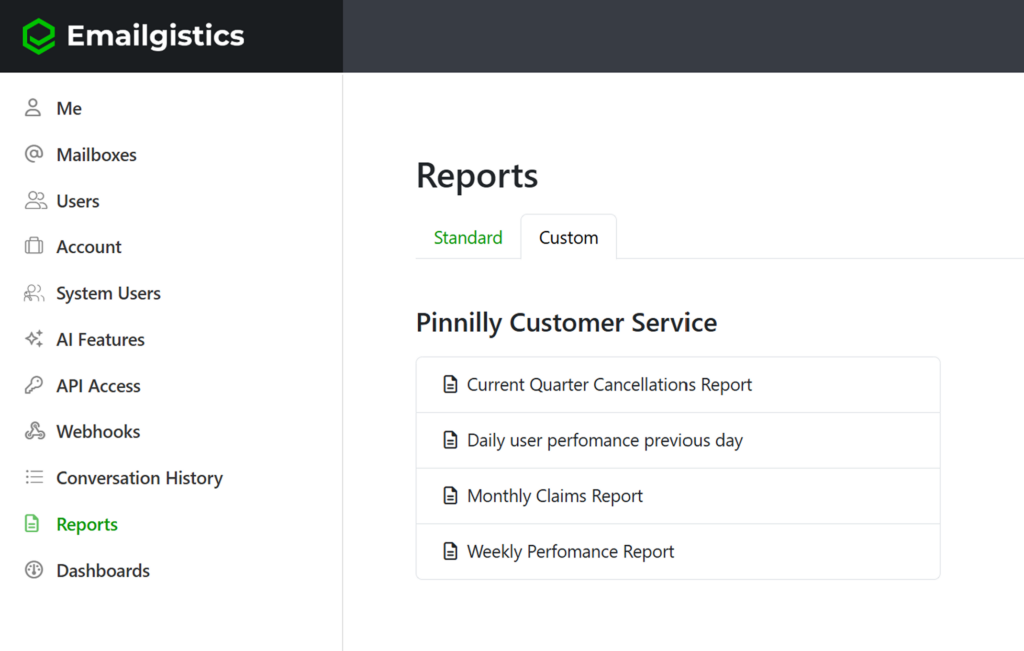
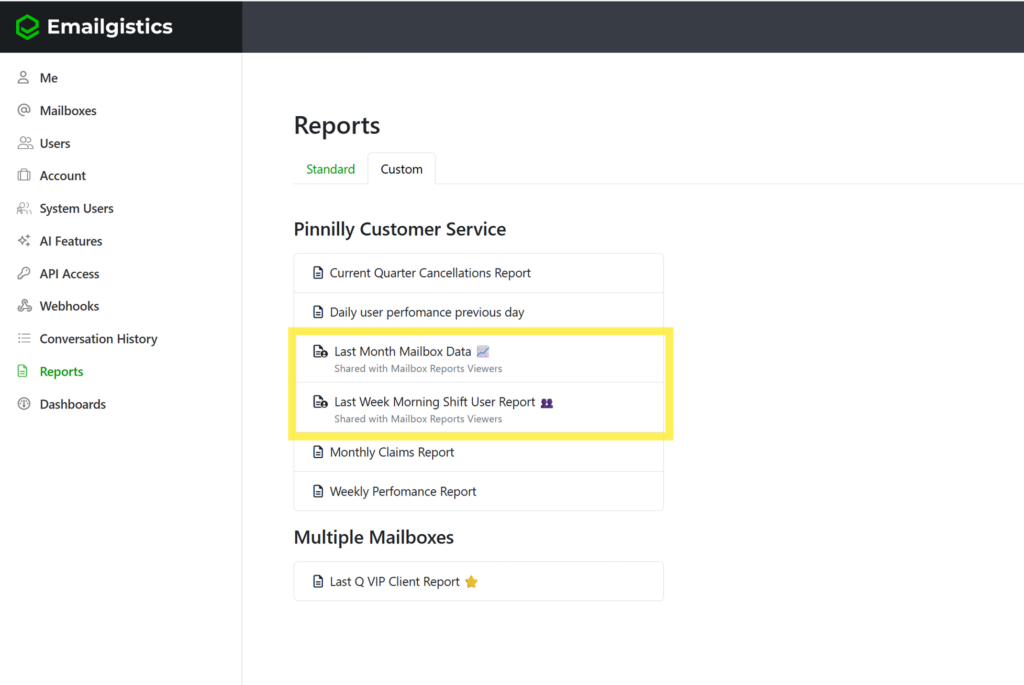
All saved reports can be accessed under the Custom tab on the main Reporting page. They are grouped by Mailboxes and those that are shared will indicate who they are shared with under the name of the report.
Sharing a Custom Report
Sharing Options
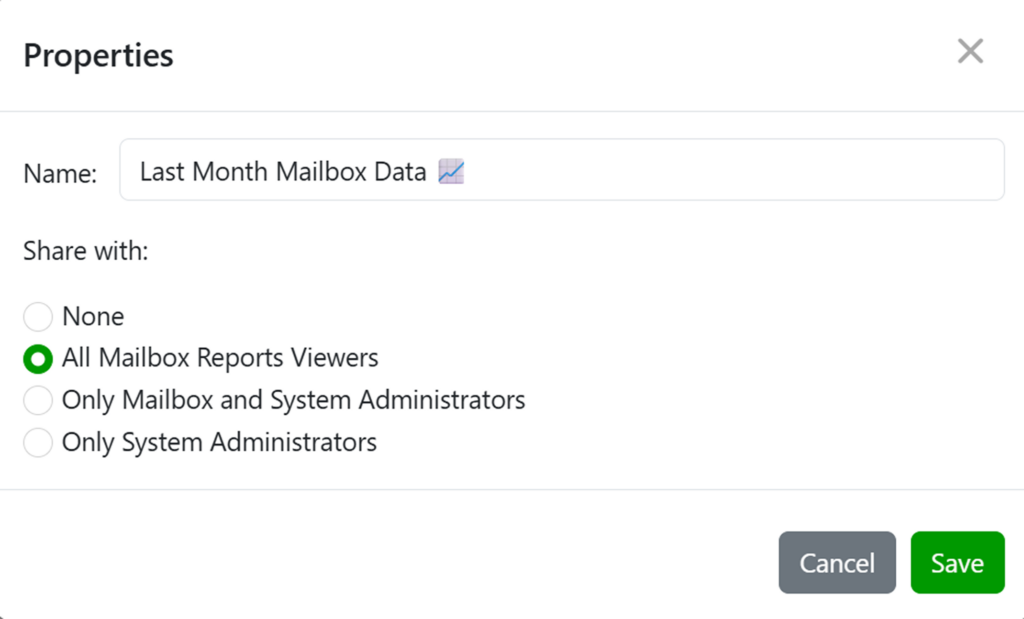
Once a report is saved, you can choose to share it with other users by selecting Properties beside the report’s name. From the Properties menu, you can assign report visibility to:
- All Mailbox Reports Viewers: shares with anyone who has mailbox report viewing permissions.
- Only Mailbox and System Administrators: limits visibility to users with admin access to that specific mailbox.
- Only System Administrators: restricts access to system-level administrators only.
Shared Report Behavior
Once shared, the report will appear in the Custom tab for all users it is shared with. Shared reports will retain the saved parameters from the original report, ensuring consistent results across teams.
How to Access Saved Reports
- Go to the Reports section in the Emailgistics Portal.
- Select the Custom tab.
- Click on a saved report to run it instantly.
- Use the Properties button to update its sharing settings or rename the report.
- To create a new saved report, run any existing report and click Save.
Practical Use Cases
Monthly Performance Reviews
Quickly rerun last month’s data with one click.
Save Time
No need to define multiple parameters each time you want to look at recurring data.
Auditing
Keep historical report formats for compliance or documentation.
Executive Reporting
Share mailbox summaries with leadership while controlling visibility.
If you have any questions or need any help with saved/custom reports, please reach out to [email protected].