


Overview
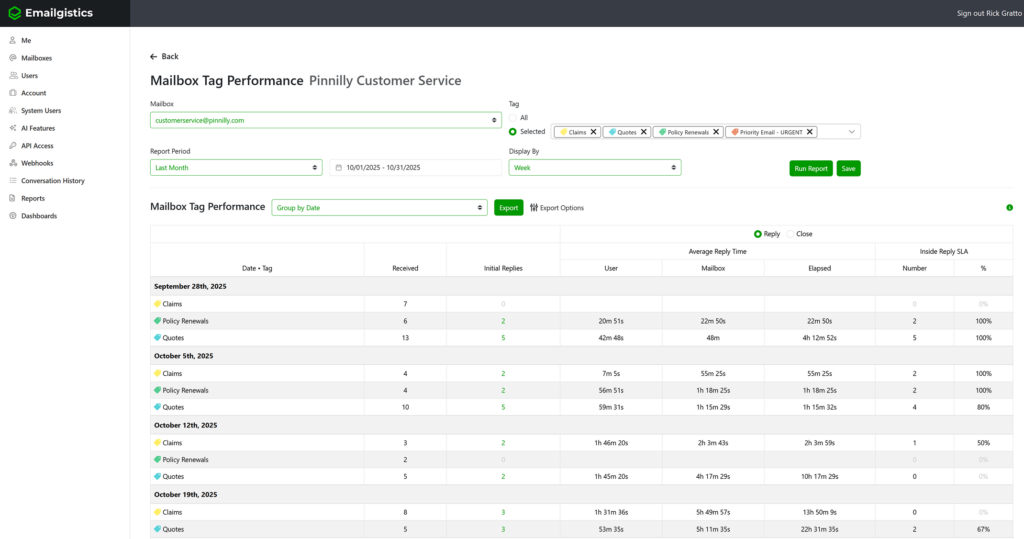
Tag Performance Reporting Overview The Tag Performance Report provides insights into message activity and team efficiency based on Emailgistics tags. If a message has a tag applied, Emailgistics can aggregate data for that tag to measure performance and response behavior related to specific workflows, topics, or customers.
You can select the mailbox you wish to analyze, then choose either specific tags or all tags to view their performance. As with other performance reports, you can toggle between Reply and Closed data using the radio button located in the top-right corner of the report.
This makes it easy to compare response times and resolution performance across different types of work—such as Claims, Renewals, Support, or Sales—depending on how your team uses tags in Emailgistics.
Why It Matters
Tags are a powerful way to categorize and track different kinds of messages across your shared mailboxes.
The Tag Performance Report helps you understand:
- Which categories of messages your team handles most often.
- How quickly and effectively messages with certain tags are being replied to or closed.
- Where additional staffing, automation, or training might be needed.
- How well different workflows (e.g., Claims, Customer Service, Renewals) meet SLA goals.
By reviewing tag-based metrics, you can identify trends that drive better workload management and team accountability.
Purpose
This report enables managers to analyze team performance by tag, ensuring each category of work is handled within the desired SLA timeframes. It provides a focused view of efficiency and resolution speed for the areas that matter most to your business operations.
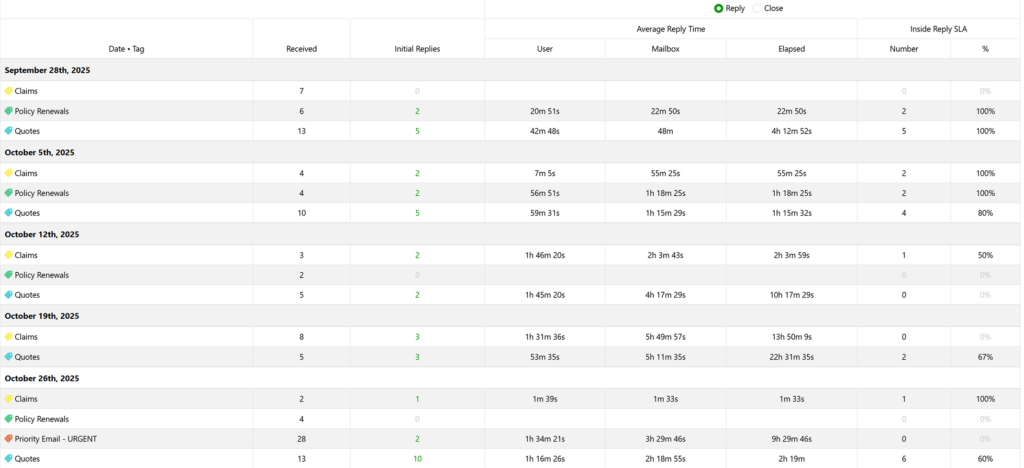
Reply Metrics Option
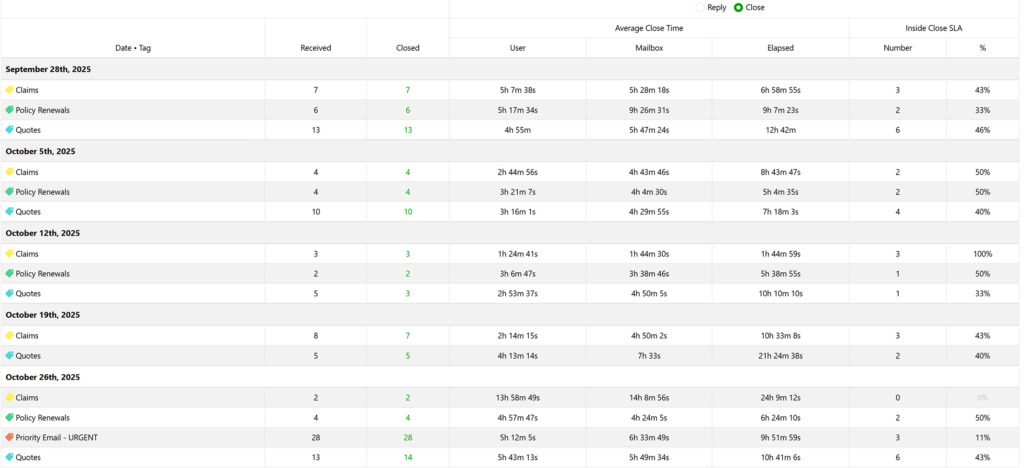
Closed metrics Option
Key Metrics
Received
The number of messages received that have the selected tag.
Initial Replies
The total number of initial replies sent to messages with the selected tag.
- An initial reply is the first reply sent to a received message.
- Messages being replied to may have been received in an earlier period.
- Each received message that is replied to is counted individually (not per conversation).
Closed
The total number of messages with the selected tag that were closed (moved to the Archive or Deleted Items folder). Messages may have been received earlier but were closed during the current reporting period.
Average Close Time
Shows how long it took to close messages associated with the selected tag.
User
Measures the time between when the message was assigned to a user and when it was closed, counting only when the user was available according to their schedule or manual availability setting.
Example
A message assigned Monday at 8 AM and closed at 10 AM by a user whose schedule starts at 9 AM results in a 1-hour user close time.
Mailbox
Measures the time between when the message was received and when it was closed, counting only mailbox open hours according to its schedule.
Example
A message received Sunday at 9 AM and closed Monday at 8 AM would count as 1-hour mailbox close time if the mailbox opens at 7 AM.
Elapsed
The total continuous time from receipt to closure, counting all days and hours.
Example
The same message would have 23 hours elapsed close time.
Inside SLA
Displays how well tagged messages meet mailbox SLA targets.
Number
The total number of messages closed within the mailbox’s Close SLA.
Percentage
The percentage of total tagged messages closed within SLA, calculated as: (Messages Closed Within SLA ÷ Total Closed Messages) × 100
How to Access
- Log in to the Emailgistics Portal.
- Navigate to Reports → Tag Performance.
- Select the mailbox you wish to analyze.
- Choose to view All Tags or select specific tags for the report.
- Use the Reply/Closed toggle in the top-right corner to switch between response and closed metrics.
- Review or export the report to share with your team.
Practical Use Cases
Workflow Analysis
Track performance across different operational categories (e.g., Claims, Renewals, Support).
Efficiency Benchmarking
Compare how long it takes to close messages under different tags.
Team Coaching
Use tag-based data to identify where the team excels or needs improvement.
SLA Monitoring
Quickly identify which tagged workflows are meeting or breaching SLA targets.
If you have any questions or would like some more information on the Emailgistics performance reports, please contact [email protected].