


Overview
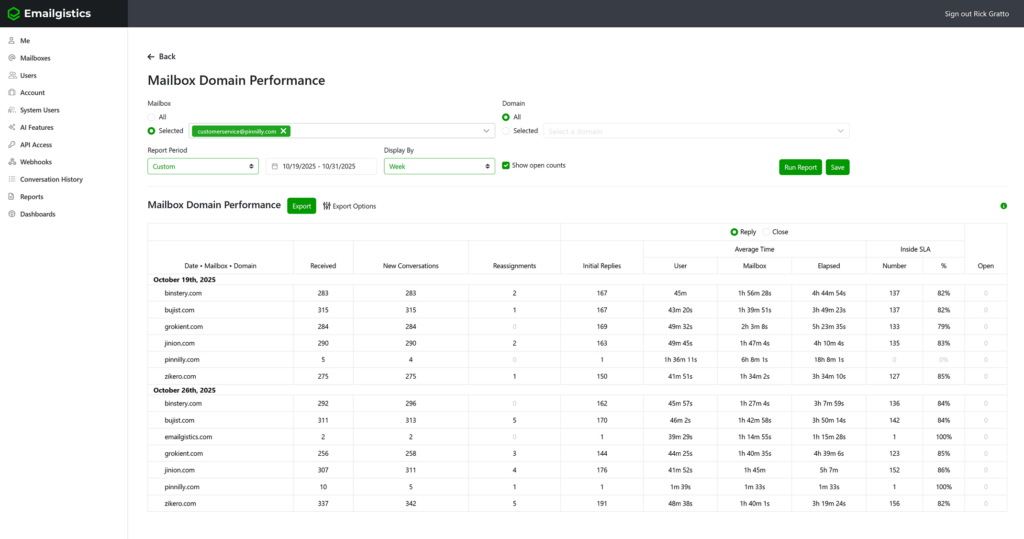
The Domain Performance Report provides detailed insights into message activity based on email domain (for example, @pinnilly.com, @gmail.com, or @partnercompany.com). This report helps teams evaluate performance trends, response efficiency, and SLA compliance across different customer or partner domains.
You can select multiple mailboxes to include in this report and choose to show all domains or filter for specific domains to narrow your focus.
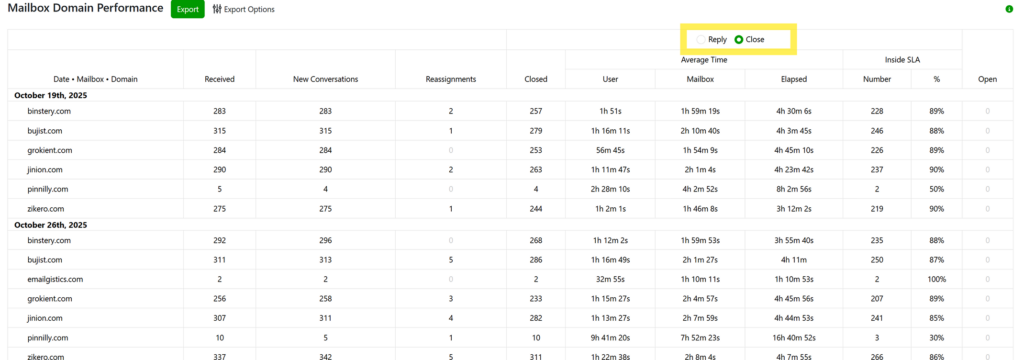
The report also allows you to toggle between Reply and Closed views using the radio button located in the top-right corner:
- Reply View shows responsiveness metrics (such as reply counts and response times).
- Closed View shows closure and resolution performance.
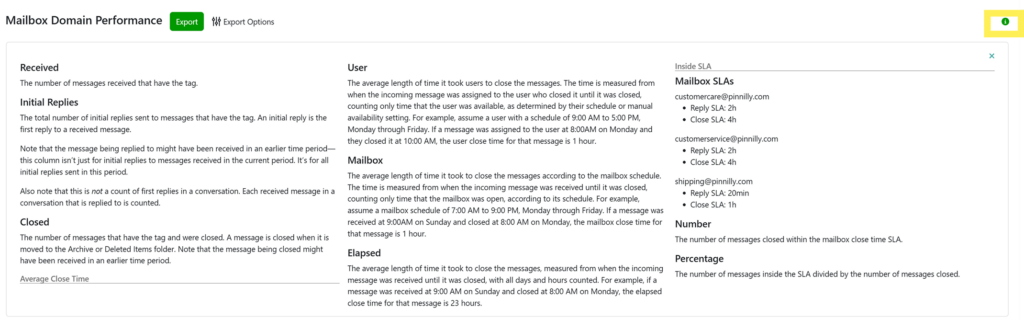
When multiple mailboxes are included, the legend (displayed via a green “i” icon in the top-right corner) shows the SLA settings for each mailbox you’re an admin of. This helps you quickly identify which SLA settings apply to the data being viewed.
Why It Matters
The Domain Performance Report allows you to see how efficiently your team handles messages from different customer or partner domains.
This insight helps you:
- Identify top domains driving message volume.
- Evaluate team responsiveness and SLA compliance across clients.
- Detect patterns in communication by company or customer type.
- Pinpoint which domains require additional resources or faster follow-up.
- Compare domain-level performance across multiple mailboxes.
Purpose
This report is ideal for managers who want to measure the quality and speed of responses per customer domain, track close times, and monitor performance across shared mailboxes—all within a single, consolidated view.
Key Metrics
Received
The number of messages received that belong to the selected domain(s).
Initial Replies
The total number of initial replies sent to messages from the domain.
- An initial reply is the first reply sent to an incoming message.
- The message being replied to may have been received in an earlier reporting period.
- Each received message that is replied to is counted individually (not per conversation).
Closed
The total number of messages from the domain that were closed (moved to the Archive or Deleted Items folder). Messages may have been received in an earlier period but closed during the selected reporting window.
Average Close Time
Represents how long it took to close messages associated with the domain.
User
Measures time from when the message was assigned to the user who closed it until closure, counting only time that the user was marked available or within scheduled hours.
Example
A user assigned a message at 8 AM and closing it at 10 AM—with a 9–5 schedule—would show 1 hour user close time.
Mailbox
Measures time from message receipt to closure, counting only mailbox open hours according to its schedule.
Example
A message received Sunday at 9 AM and closed Monday at 8 AM counts as 1 hour mailbox close time if the mailbox opens at 7 AM.
Elapsed
Measures total continuous time (24/7) from when the message was received until it was closed.
Example
The same message would have 23 hours elapsed close time.
Inside SLA
If SLAs are configured for your mailboxes, this section tracks SLA compliance for each mailbox included in the report. The legend (accessed via the green “i” icon in the top-right corner) shows each mailbox’s configured Reply and Close SLA thresholds, helping you interpret the data correctly
Example SLA Legend
[email protected] | Reply SLA: 2h | Close SLA: 4h [email protected] | Reply SLA: 2h | Close SLA: 4h [email protected] | Reply SLA: 20 min | Close SLA: 1 hr
Number
The number of messages closed within the mailbox’s SLA threshold.
Percentage
The percentage of total messages that were closed within SLA, calculated as:
(Messages Closed Within SLA ÷ Total Closed Messages) × 100
How to Access
- Log in to the Emailgistics Portal.
- Navigate to Reports → Domain Performance.
- Select one or more mailboxes to include in the report.
- Choose All Domains or filter for specific domains to analyze.
- Use the Reply/Closed toggle in the top-right corner to switch report modes.
- View or export the report as needed.
If you have any questions or would like some more information on the Emailgistics performance reports, please contact [email protected].