Overview
Emailgistics dashboards offer real-time insights into team and user performance metrics. These dashboards update every 60 seconds, providing a live overview of your mailbox performance. Please note that metrics displayed in the dashboards may differ from Emailgistics aggregate reports due to the live nature of the data.
Dashboard updates rely on notifications provided to Emailgistics by Microsoft 365. In the event of delayed notifications from Microsoft 365, dashboard accuracy may be compromised. This can occur during large-scale message migrations, such as when a user moves 50 or more messages via drag-and-drop, causing notification delays.
Tag Filtering
Certain gauges support tag-based filtering. When a tag is applied to a message, it can generate its own unique set of metrics within those gauges. Gauges that support tag filtering are marked with an asterisk * in the category headers and gauge titles below.
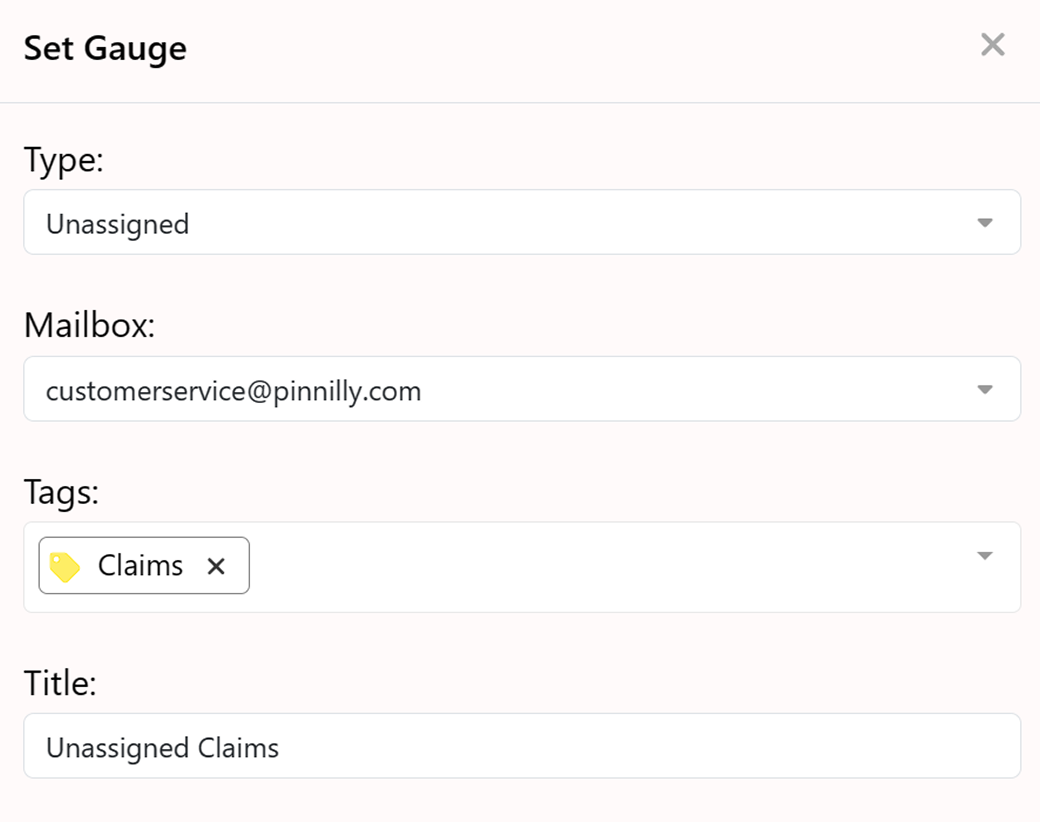
On every dashboard you must specify a default mailbox. Any time a new dashboard is created or a gauge is added, it will show metrics for this default mailbox. However, on individual gauges you can override the mailbox in settings, allowing you to track multiple mailboxes in a single dashboard.
Mailbox Volume & StatusOpen* · Unassigned* · Snoozed Messages · Received Today* · Closed Today · Initial Replies Today · Oldest Message
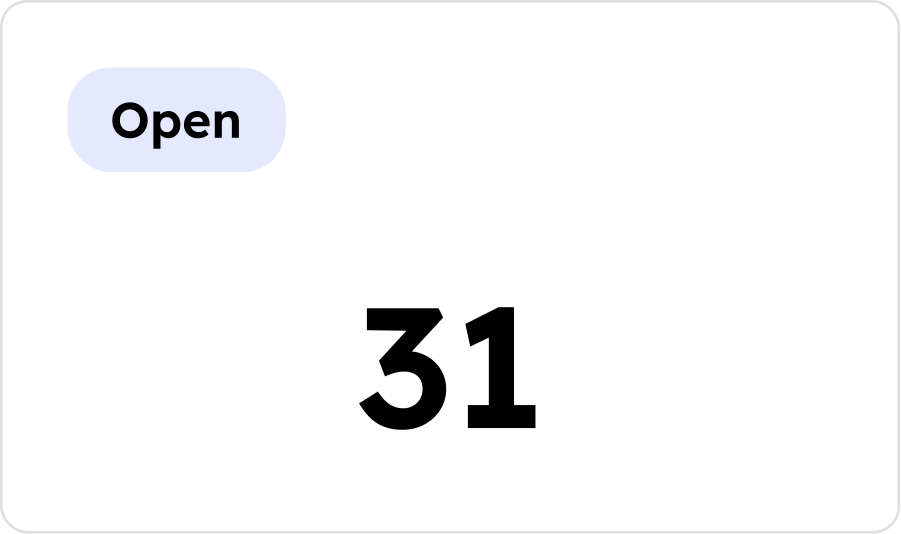
Open * Tag
Total number of open messages in the mailbox — includes assigned, unassigned, and snoozed messages.
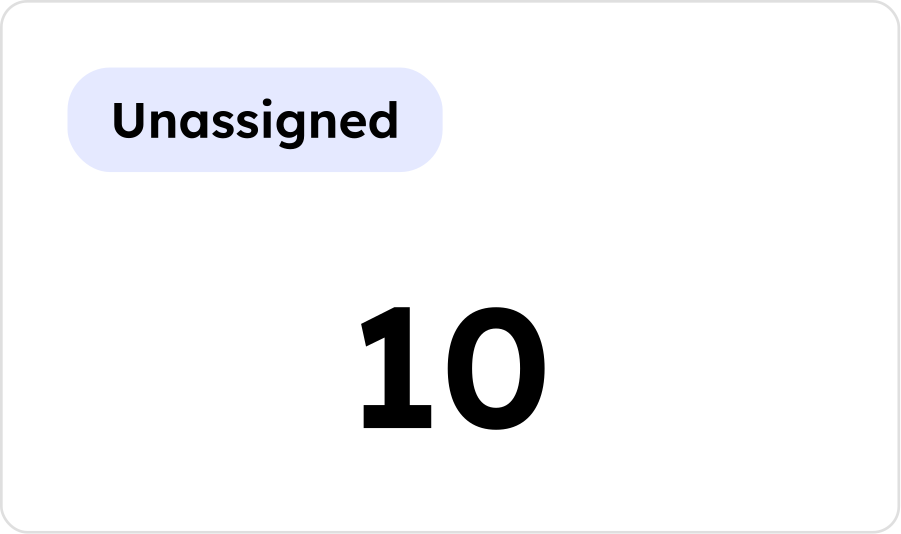
Unassigned * Tag
Total number of messages currently sitting in the inbox (unassigned to any user).
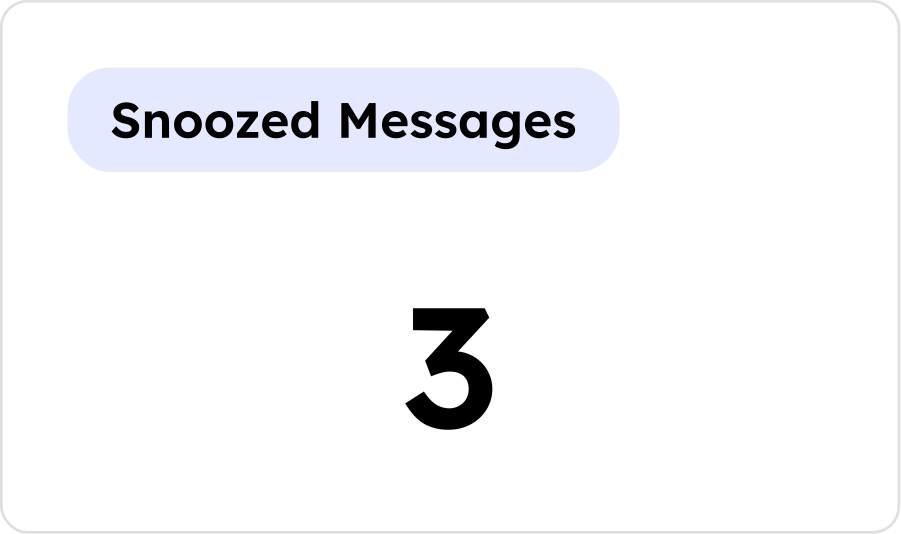
Snoozed Messages
Total number of messages currently in the snoozed folder.
Received Today * Tag
Total number of messages received today.
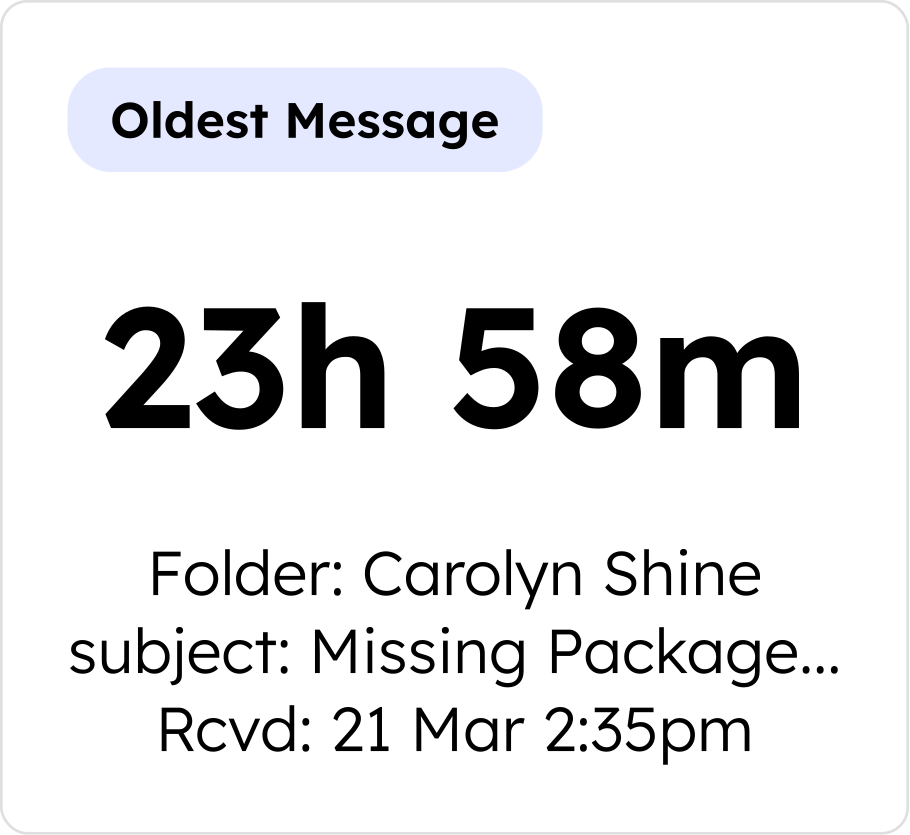
Closed Today
Total number of messages closed today.
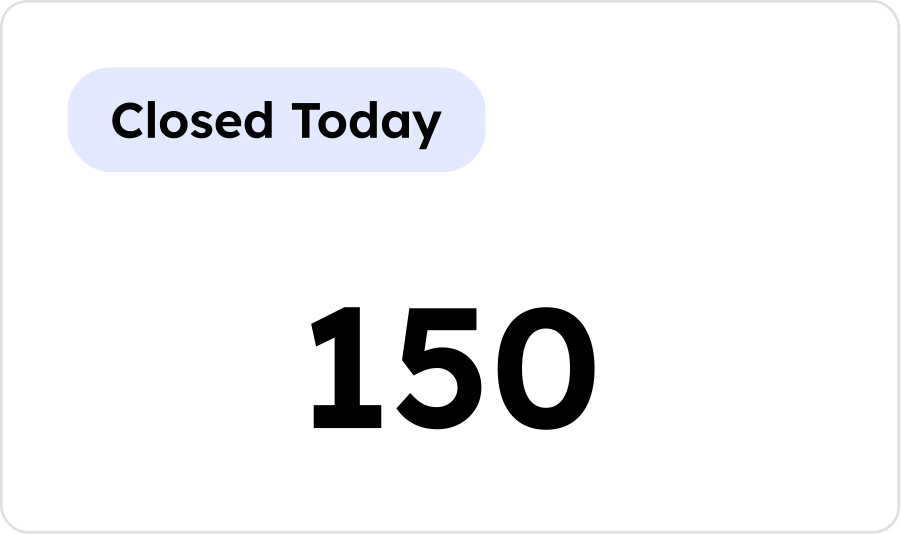
Initial Replies Today
Total number of initial replies sent today. An initial reply is the first reply sent to a received message.
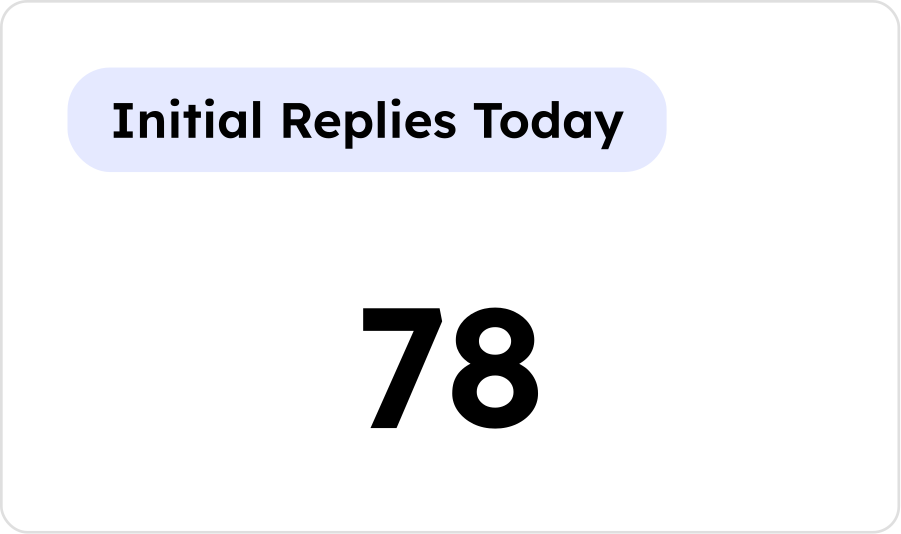
Oldest Message
Age of the oldest open message — includes assigned, unassigned, and snoozed messages, regardless of reply status. Age is measured according to the mailbox schedule.
Mailbox-Level Response & Close TimesAvg Mailbox Reply Time* · Avg Mailbox Close Time* · Avg Elapsed Reply Time
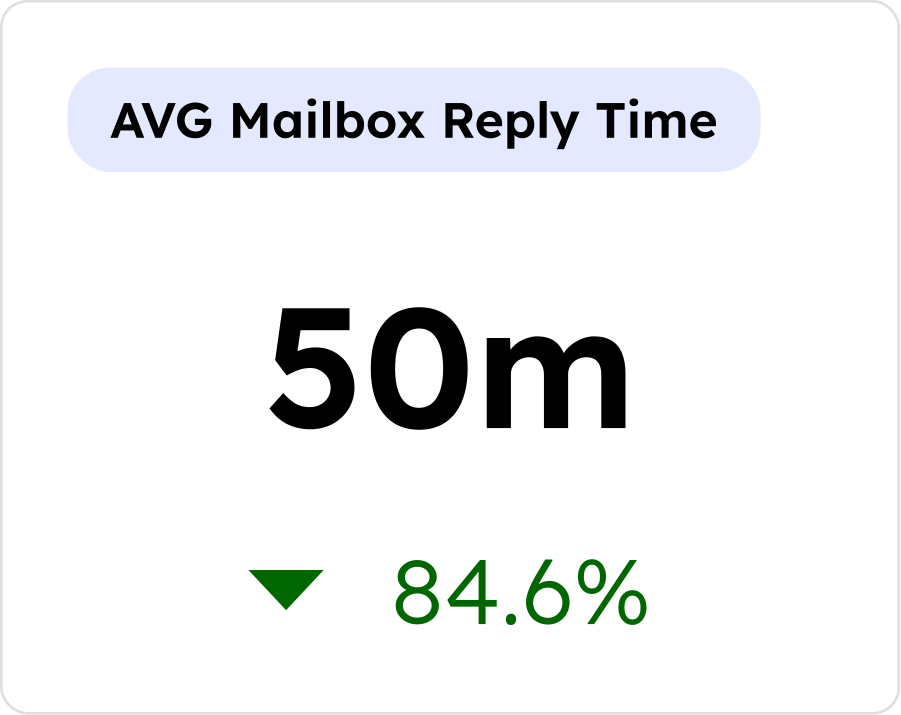
Avg Mailbox Reply Time * Tag
The average length of time to send initial replies, according to the mailbox schedule. Includes an indicator showing percentage change (improvement or decline) from the previous day.
Time is measured from when the incoming message was received until the reply was sent, counting only time the mailbox was open per its schedule.
Example
Mailbox schedule 7:00 AM–9:00 PM, Mon–Fri. Message received at 9:00 AM Sunday, replied to at 8:00 AM Monday = mailbox response time of 1 hour.
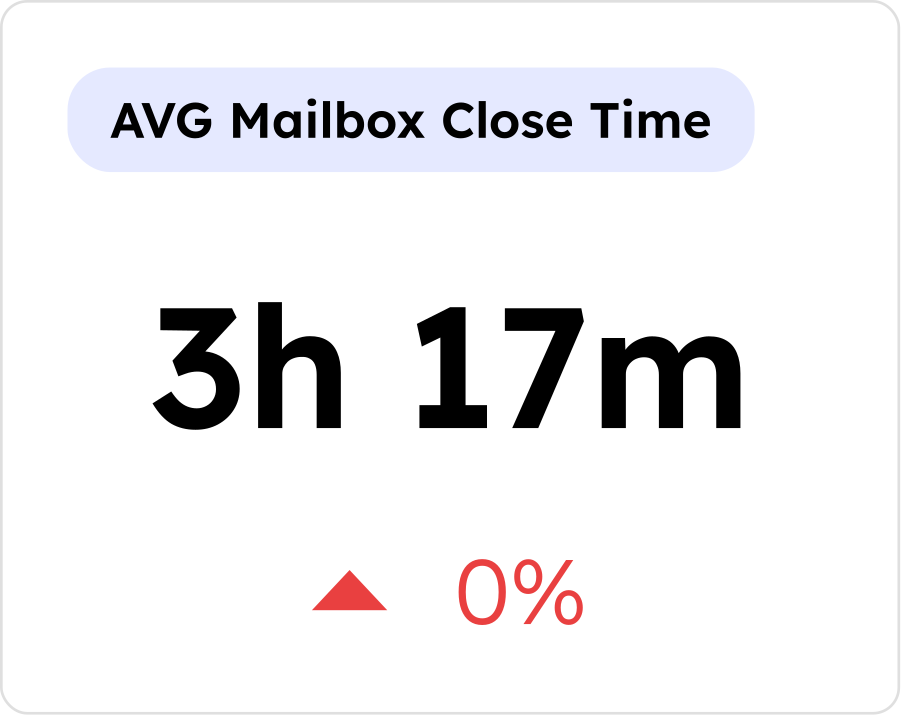
Avg Mailbox Close Time * Tag
The average length of time to close messages, according to the mailbox schedule. Includes an indicator showing percentage change (improvement or decline) from the previous day.
Time is measured from when the incoming message was received until it was closed, counting only time the mailbox was open per its schedule.
Example
Mailbox schedule 7:00 AM–9:00 PM, Mon–Fri. Message received at 9:00 AM Sunday, closed at 8:00 AM Monday = mailbox close time of 1 hour.
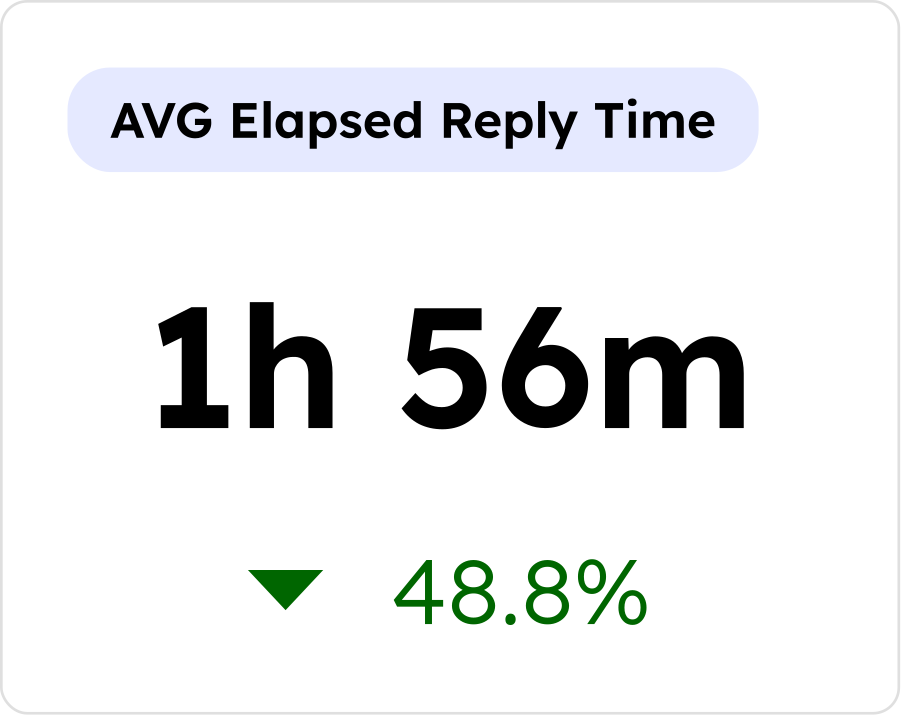
Avg Elapsed Reply Time
The average length of time to send initial replies, measured from when the incoming message was received until the reply was sent. All days and hours are counted — the mailbox schedule is not applied.
Example
Message received at 9:00 AM Sunday, replied to at 8:00 AM Monday = elapsed response time of 23 hours.
User-Level Response & Close TimesAvg User Reply Time · Avg User Reply Times · Avg Elapsed Reply Times · Avg User Close Times
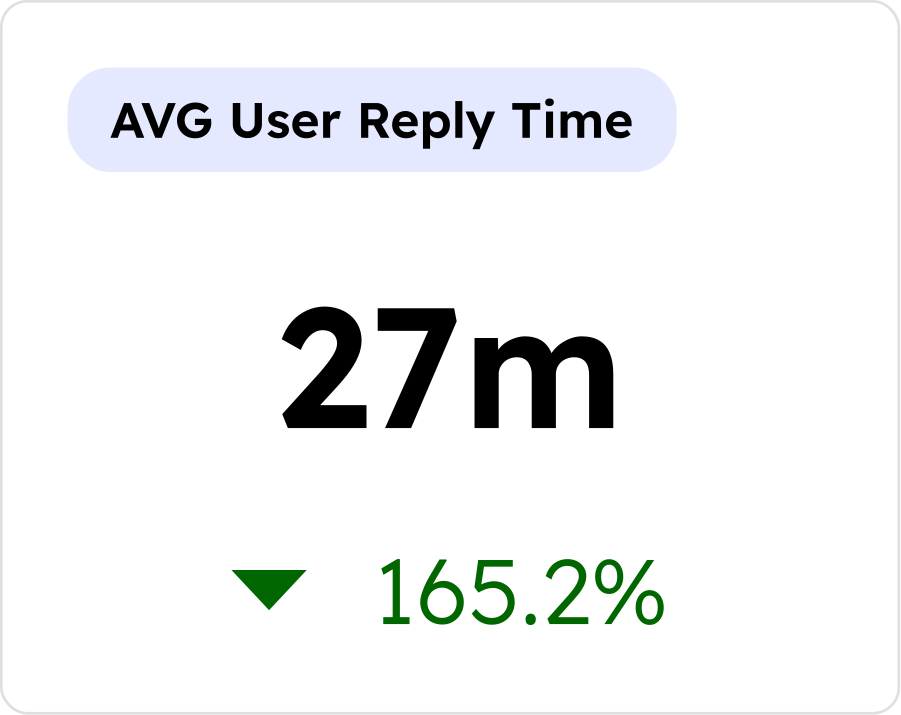
Avg User Reply Time
The average length of time it took users to send initial replies. Includes an indicator showing percentage change (improvement or decline) from the previous day.
Time is measured from when the message was assigned to the user until they sent the reply, counting only time the user was available per their schedule or manual availability setting.
Example
User schedule 9:00 AM–5:00 PM, Mon–Fri. Message assigned at 8:00 AM Monday, replied at 10:00 AM = user reply time of 1 hour.
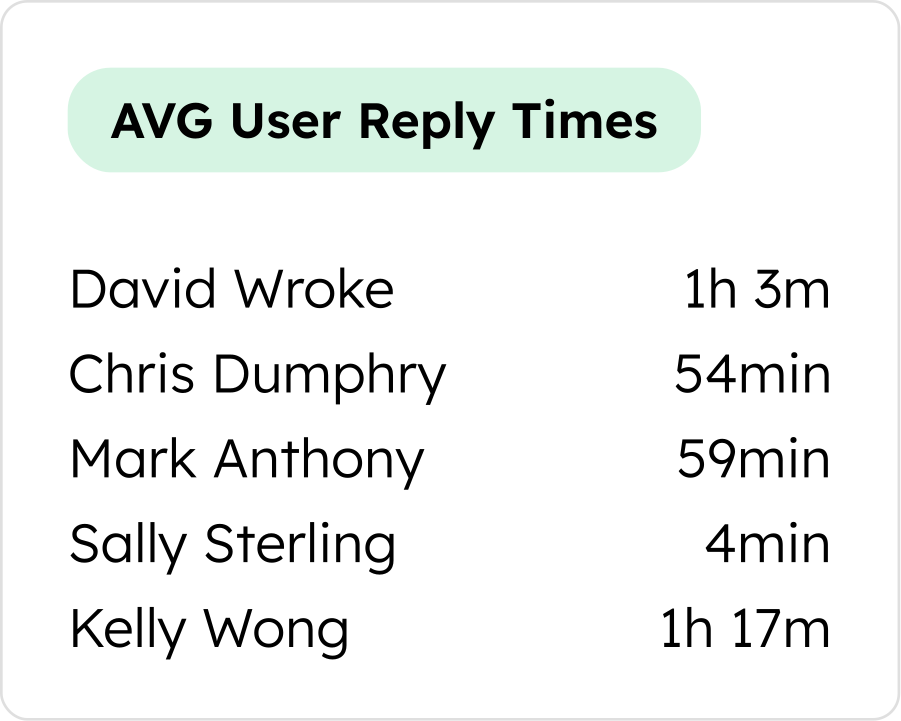
Avg User Reply Times (by user)
The average length of time it took each user to send initial replies, displayed per user. Time is measured from when the message was assigned to the user until the reply was sent, counting only time the user was available.
Example
User schedule 9:00 AM–5:00 PM, Mon–Fri. Message assigned at 8:00 AM Monday, replied at 10:00 AM = 1 hour.
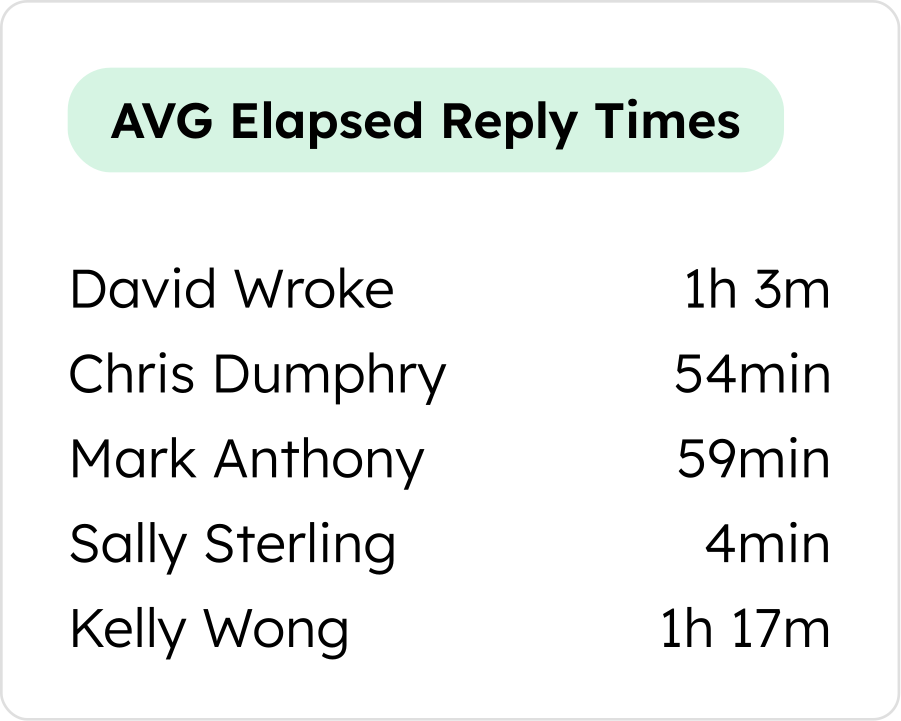
Avg Elapsed Reply Times (by user)
The average length of time to send initial replies, broken down by user. Time is measured from when the incoming message was received until the reply was sent — all days and hours counted, mailbox schedule not applied.
Example
Message received at 9:00 AM Sunday, replied at 8:00 AM Monday = elapsed response time of 23 hours.
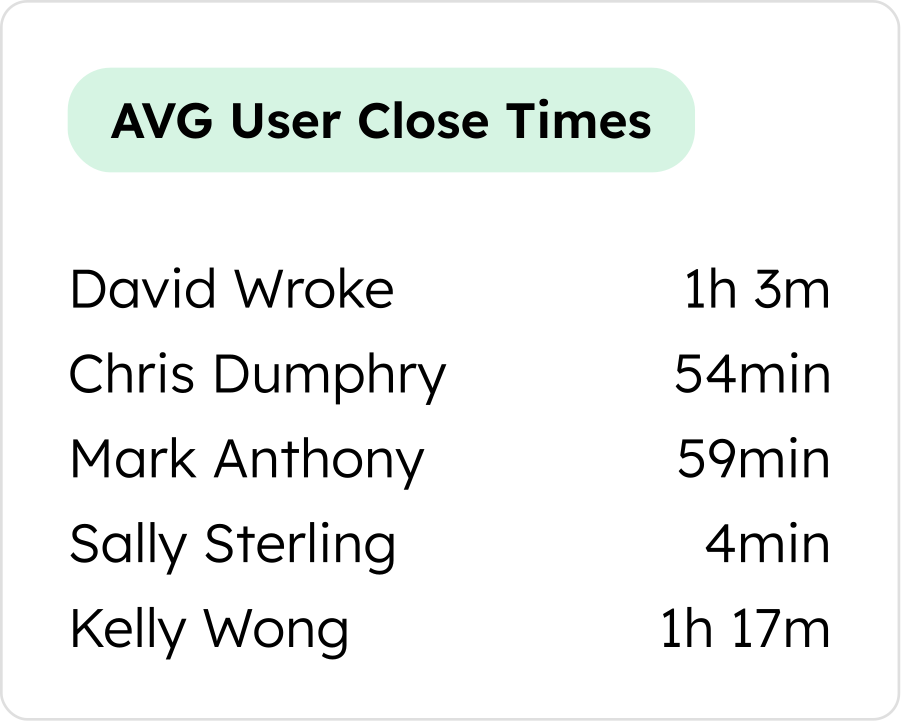
Avg User Close Times (by user)
The average length of time it took each user to close messages, displayed per user. Time is measured from when the incoming message was assigned to the user until it was closed, counting only time the user was available per their schedule or manual availability setting.
Example
User schedule 9:00 AM–5:00 PM, Mon–Fri. Message assigned at 8:00 AM Monday, closed at 10:00 AM = user close time of 1 hour.
SLA ComplianceInside Reply SLA · Inside Close SLA
Note: Both SLA gauges are only shown when an SLA is active. Configure your SLA thresholds in Mailbox Settings → SLA.
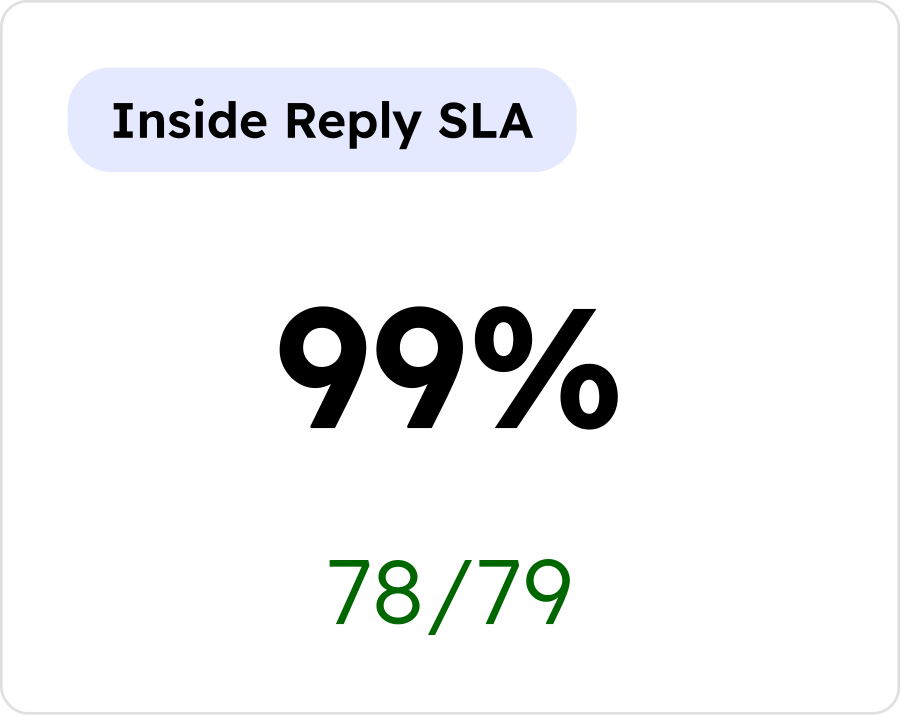
Inside Reply SLA
Shown only when a reply time SLA is in effect.
Percentage view: The number of messages inside the SLA divided by the number of initial replies made.
Number view: The number of initial replies made within the mailbox reply time SLA out of total initial replies made.
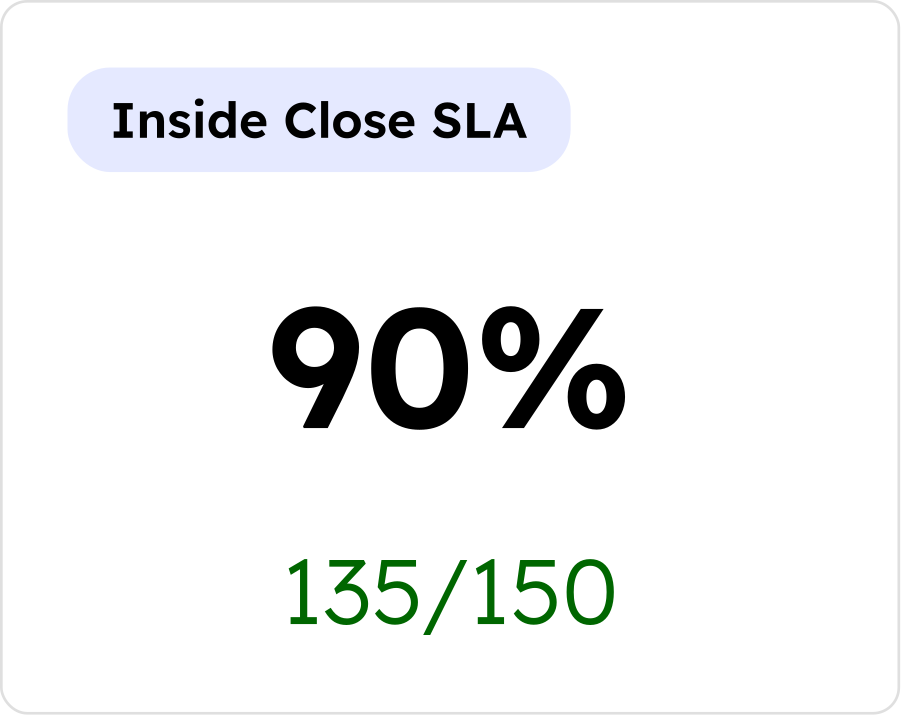
Inside Close SLA
Shown only when a close time SLA is in effect.
Percentage view: The number of messages inside the SLA divided by the number of messages closed.
Number view: The number of messages closed within the mailbox close time SLA out of total closed messages.
User Activity & WorkloadAvailable Users · Assigned Messages* · User Initial Reply Counts · User Closed Counts · Snoozed Messages By User
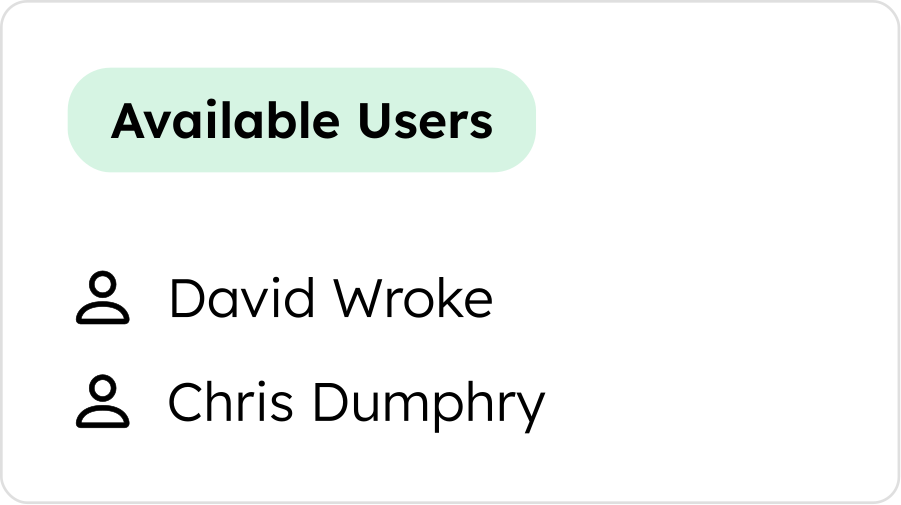
Available Users
Users who are currently marked as available in the mailbox.
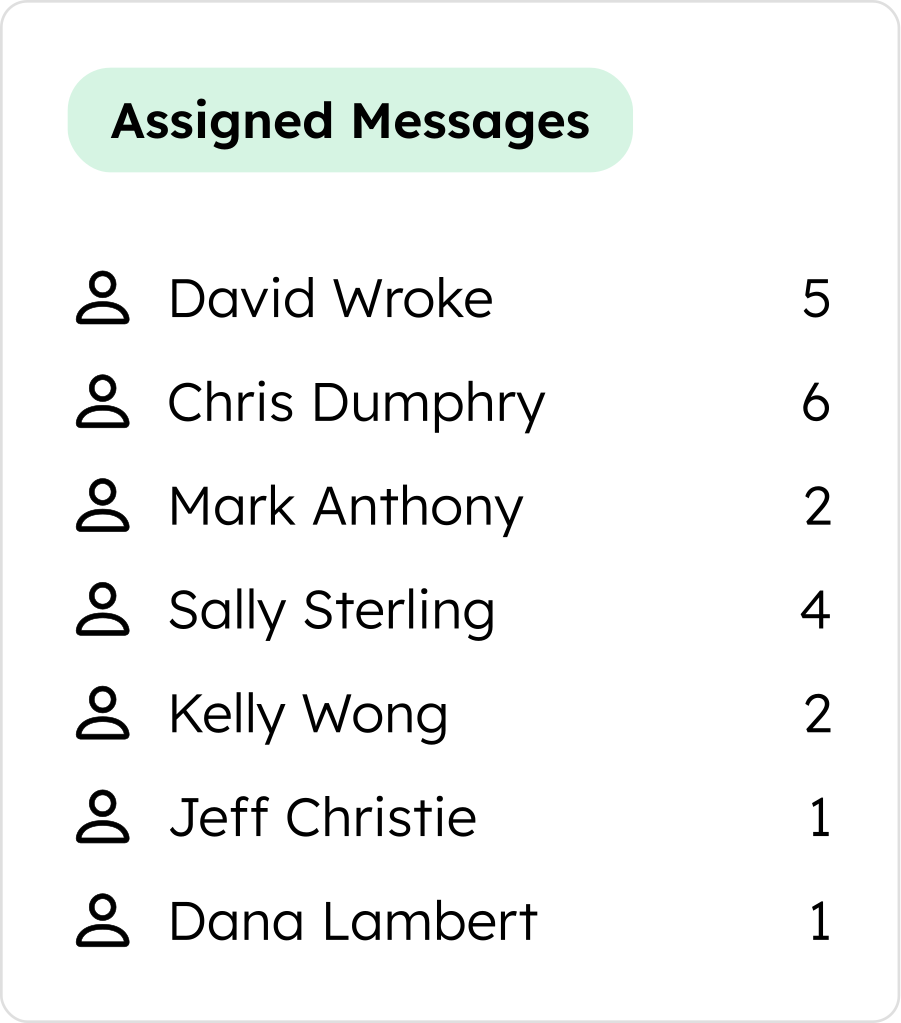
Assigned Messages * Tag
Current number of messages assigned to each user. Options include excluding users with 0 assigned messages, and a visual indicator (slash through user icon) identifies users who are not currently available.
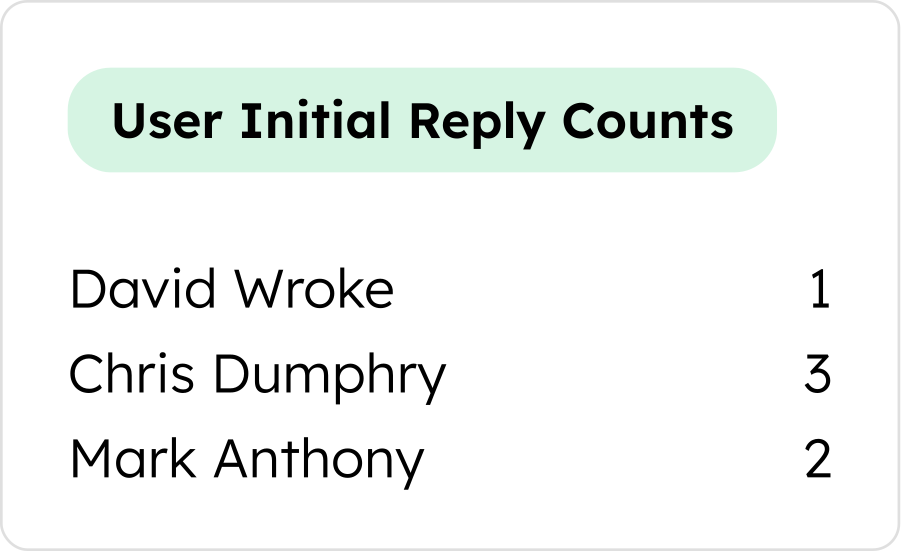
User Initial Reply Counts (by user)
Initial replies made by each individual user, displayed per user.
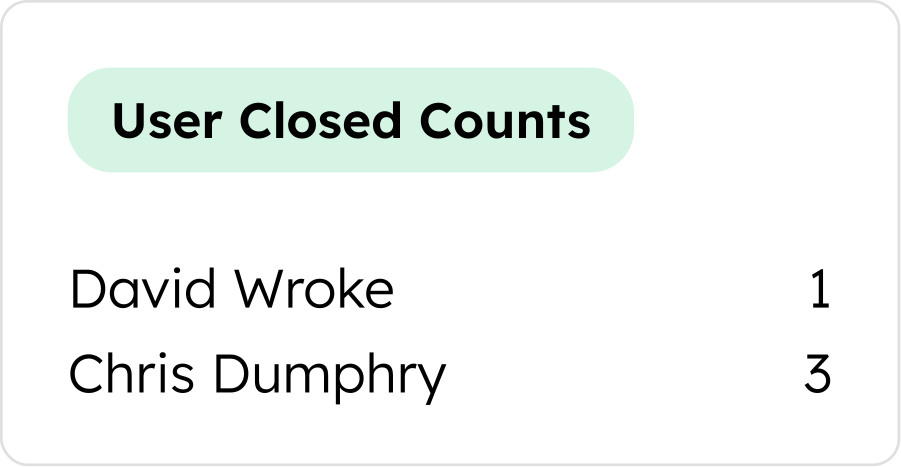
User Closed Counts (by user)
Messages closed by each individual user, displayed per user.
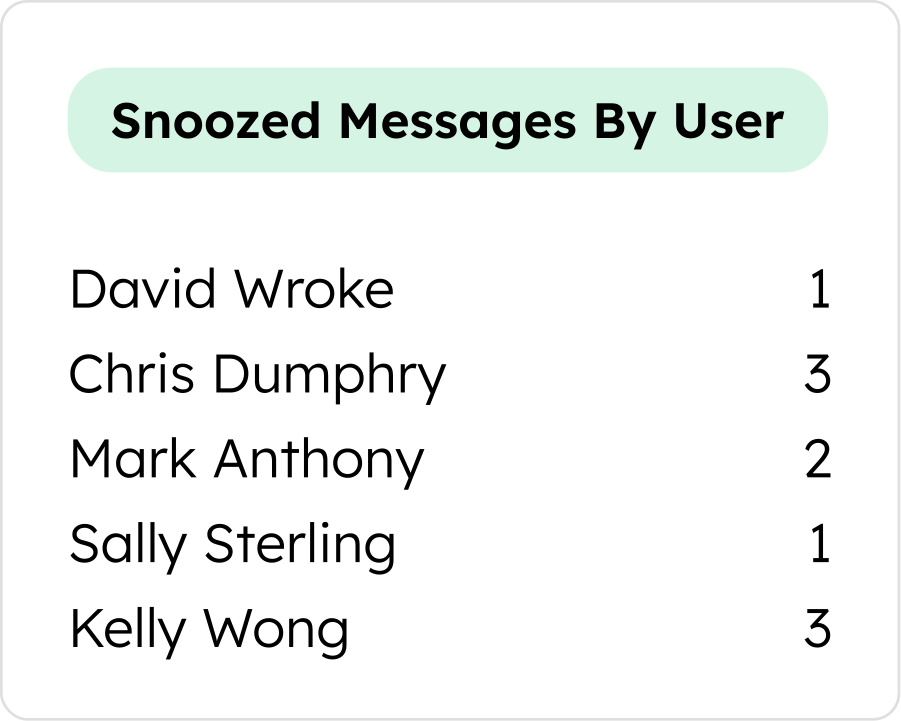
Snoozed Messages By User (by user)
Total number of snoozed messages per user, displayed individually.