


Overview
The Open Message Detail and Alert Detail Reports provide Reports Viewers with powerful insights into message status and service-level adherence. These reports help track open messages, understand workload distribution, and identify messages that may be breaching or approaching SLA thresholds. Both reports allow the reports user to click on the Conversation ID number and the Message Subject line to drill down into conversation history or message specific details.
There are two reports included in this section:
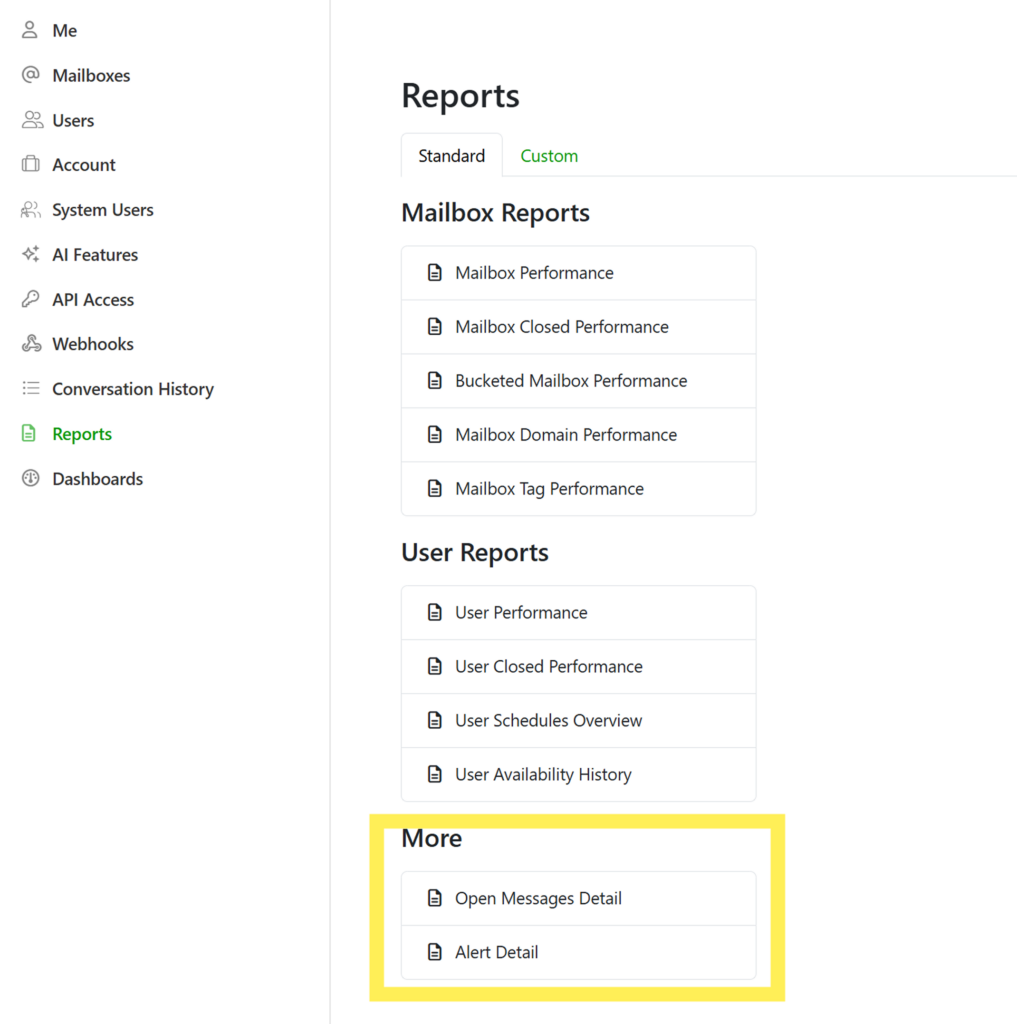
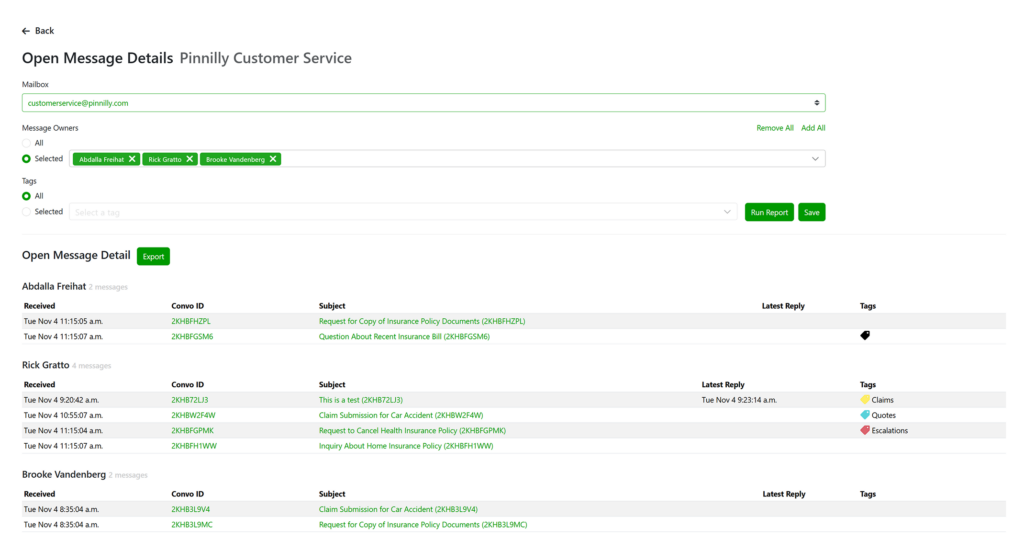
- Open Message Detail Report – displays all currently open messages in the mailbox, grouped by user/folder.
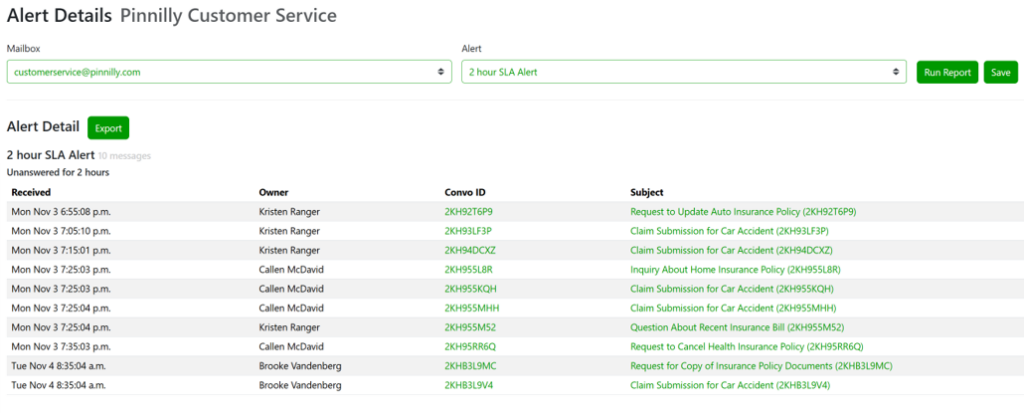
- Alert Detail Report – displays all messages that meet the conditions of a specific alert (e.g., 2-hour SLA Alert).
Why It Matters
The Open Message Detail and Alert Detail Reports give managers and team leads real-time visibility into active and time-sensitive messages/conversations.
By monitoring these reports, teams can:
- Quickly identify unaddressed or overdue messages.
- Monitor snoozed conversations and when they will reappear.
- Track open workload per user.
- Ensure SLA compliance and prevent missed responses.
- Prioritize customer inquiries requiring immediate attention.
Purpose
These reports are designed to keep your team proactive and accountable by showing exactly which messages remain open or have triggered SLA alerts.
Open Message Detail Report
Overview
The Open Message Detail Report displays all current open messages in the selected mailbox, organized by user or folder. It includes messages that are currently being worked on, as well as those that are snoozed, with the snooze duration clearly indicated.
This report provides complete visibility into active workloads, making it easy for managers to review what’s in progress and ensure timely follow-ups.
Key Columns
The date and time when the message was received in the mailbox.
Convo ID
The unique conversation ID for the message. Each Convo ID is clickable and links directly to the full conversation history.
Subject
The subject line of the message. Clickable to view message-specific details directly in the portal.
Tags
Displays any Emailgistics tags that have been applied to the message.
Snoozed Messages
Messages that are snoozed will appear in the report with the ‘Snoozed Until’ time shown, allowing you to track when they will reappear in the active view.

How to Access
- Log in to the Emailgistics Portal.
- Navigate to Reports → Open Message Detail.
- Select the desired Mailbox.
- Choose message Owners (All or Selected users).
- Optionally, filter by Tags.
- Click Run Report to generate results.
- Use Export to download a copy of the open message data.
Alert Detail Report
Overview
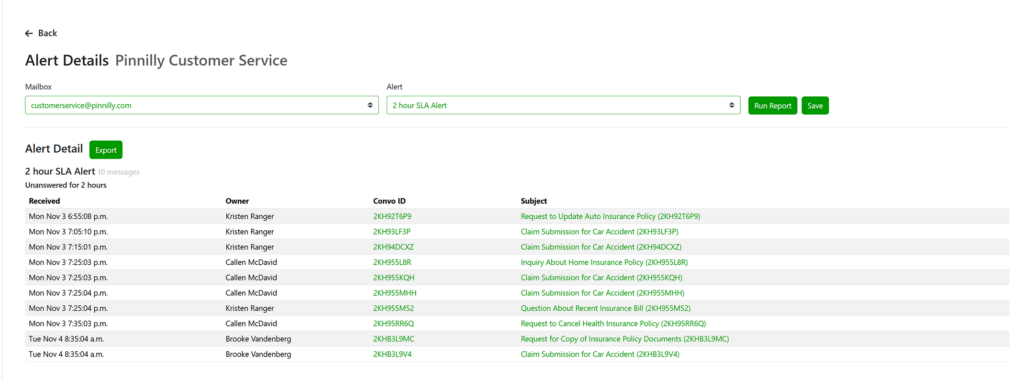
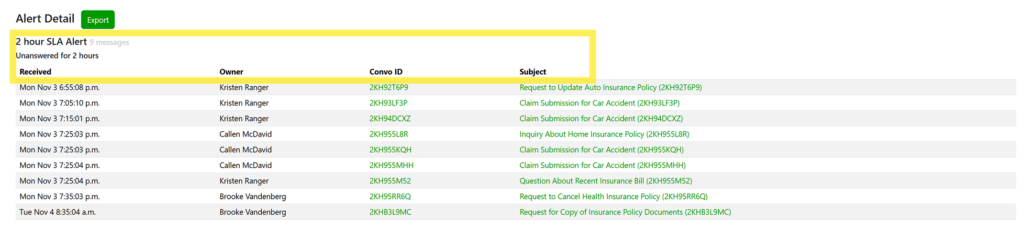
The Alert Detail Report displays all messages that meet the conditions of a selected alert. Alerts are used to flag messages that have remained unanswered beyond a set threshold, such as a 2-hour SLA alert.
This report helps managers and teams stay on top of messages requiring immediate attention, reducing the risk of SLA breaches and missed responses.
Key Columns
Received
The date and time when the message was received.
Owner
The name of the user currently assigned to the message.
Convo ID
The unique conversation ID. Each ID is clickable and links directly to the message thread for quick access.
Subject
The message subject line, providing immediate visibility into the topic or request associated with the alert.
How to Access
- Log in to the Emailgistics Portal.
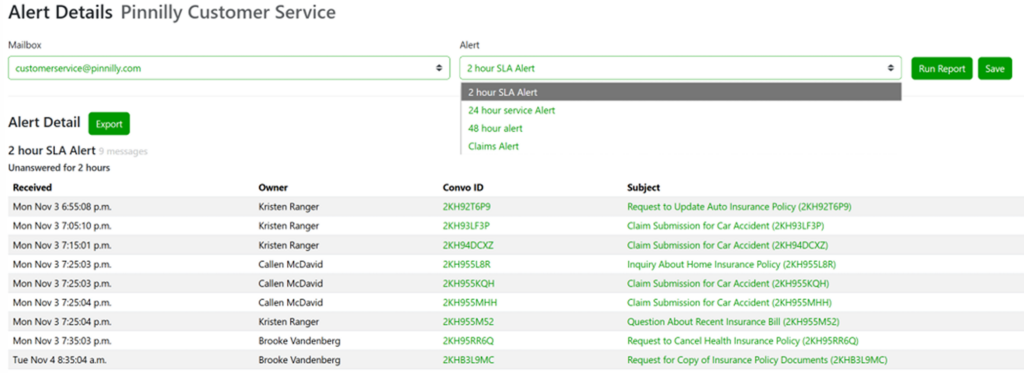
- Go to Reports → Alert Detail.
- Select the Mailbox.
- Choose the Alert (e.g., 2-hour SLA Alert).
- Click Run Report to view all messages meeting the alert criteria.
- Use Export to download the results for record keeping or follow-up.
Practical Use Case
SLA Monitoring
Track messages that have not received replies within the defined SLA window.
Workload Review
See which users have the highest number of open or overdue messages.
Accountability
Quickly verify whether alerts were acted upon promptly.
Team Follow-Up
Use open and alert data to coordinate responses across your team.
If you need any help or have questions regarding the Open Messages Detail or Alert Details Reports please reach out to [email protected].