


Overview
Overview The User Schedule and Availability Reports give you visibility into team member working hours, breaks, and overall availability in shared mailboxes. These reports help managers understand when users are scheduled to work, who is currently available, and how users’ manual availability aligns with their defined schedules.
There are two reports included in this section:
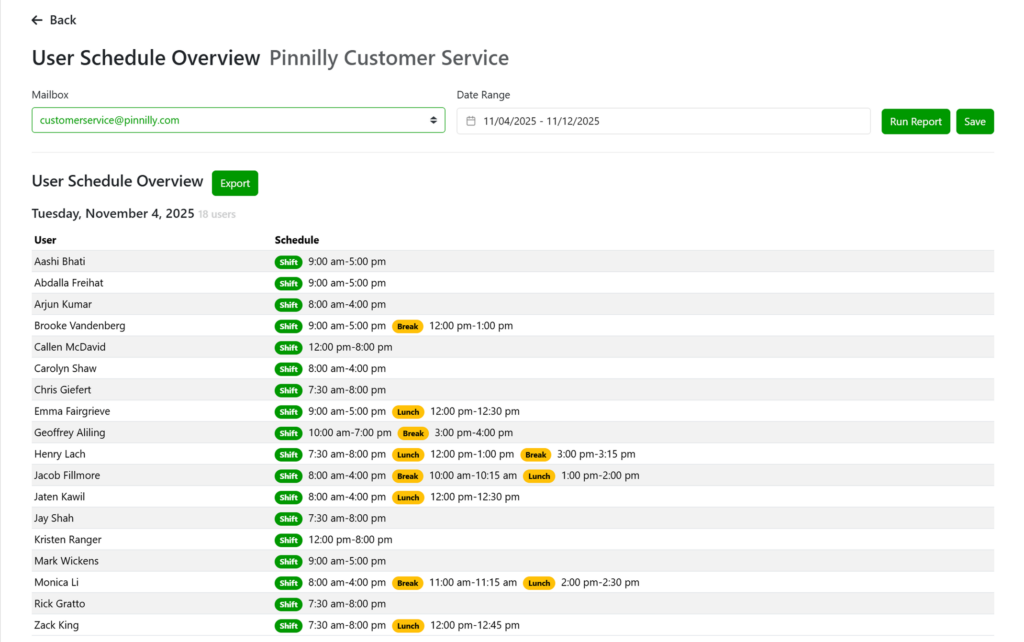
- User Schedule Overview – displays upcoming user schedules (planned shifts, breaks, time off).
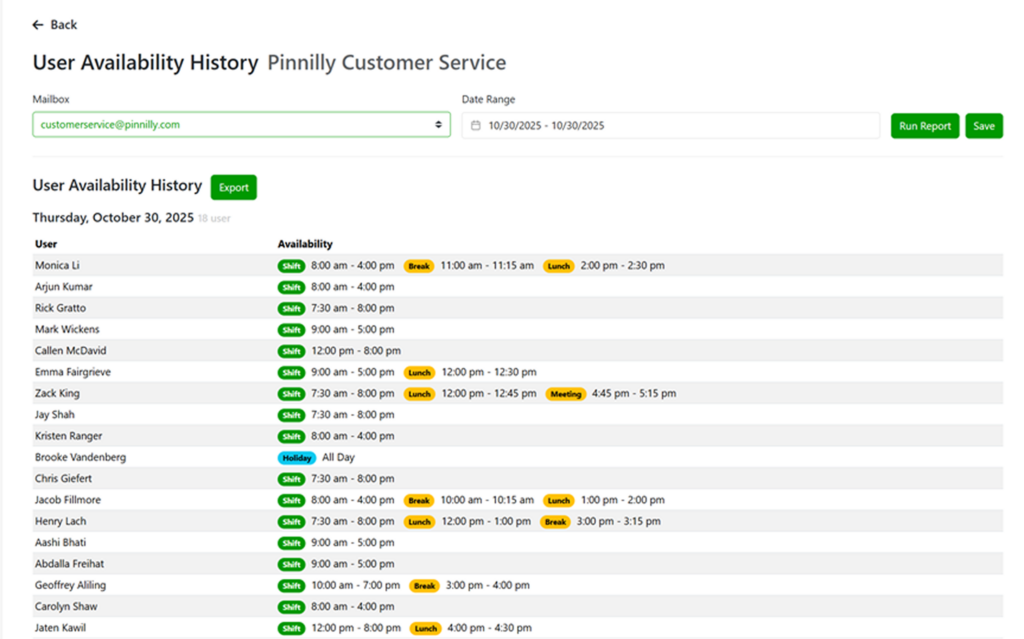
- User Availability History – displays historical availability, including manual availability activity.
Why It Matters
Maintaining accurate user schedules and understanding availability patterns is crucial for service-level tracking, accurate performance reporting, and balanced workload distribution.
With these reports, managers can:
- View upcoming user schedules to plan coverage.
- Identify potential coverage gaps or overlapping time off.
- Review historical availability to evaluate adherence to schedules.
- Correlate schedule data with reply and close performance reports.
- Validate that SLA metrics accurately reflect true working hours.
By combining both schedule and availability data, you gain a clear picture of how your team’s actual working hours affect overall performance and response efficiency.
Purpose
These reports ensure accurate alignment between mailbox coverage and user activity. They provide managers with visibility into when team members are working or on break, and help maintain reporting integrity across performance metrics.
User Schedule Overview
Overview
The User Schedule Overview Report displays upcoming scheduled shifts and events for each user. This includes working hours, breaks, and any planned time off such as PTO, Vacation, Holiday, or Appointments.
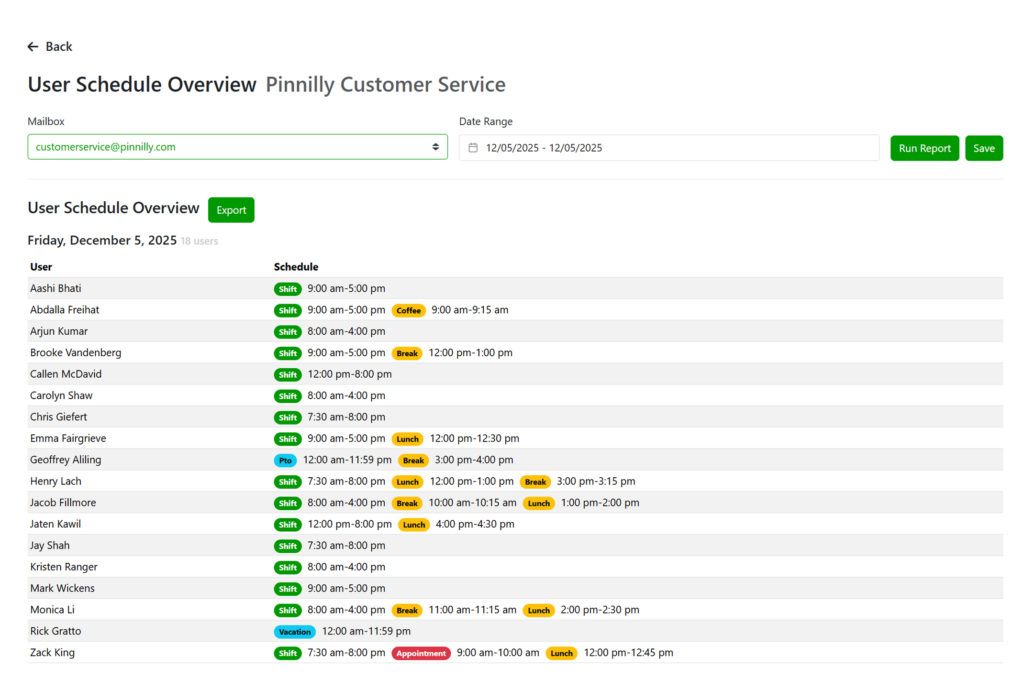
Key Metrics & Details
Mailbox
Select which mailbox’s user schedules to view.
Date Range
Choose the period you’d like to review — typically covering upcoming days or weeks.
User List
All users assigned to the selected mailbox appear in the report. Each user row shows scheduled shift details, including breaks or special events.
Schedule Events
The following event types may appear:
Shift
Standard working hours for each user.
Break
Scheduled break periods during a shift.
Lunch
Scheduled lunch periods.
Time Off
User is away for the day due to PTO, vacation, or holiday.
Appointment
A user-specific blocked time outside their regular shift.
How to Access
- Log in to the Emailgistics Portal.
- Navigate to Reports → User Schedule Overview.
- Select the Mailbox and Date Range.
- Click Run Report to view upcoming shifts and scheduled events.
- Use the Export button to download a copy of the report.
User Availability History
Overview
The User Availability History Report displays historical data for user availability, providing insights into when users were active, on break, or offline. It includes all the event types from the User Schedule Overview, with the addition of Manual Availability details—capturing when users switched their status to available or unavailable manually.
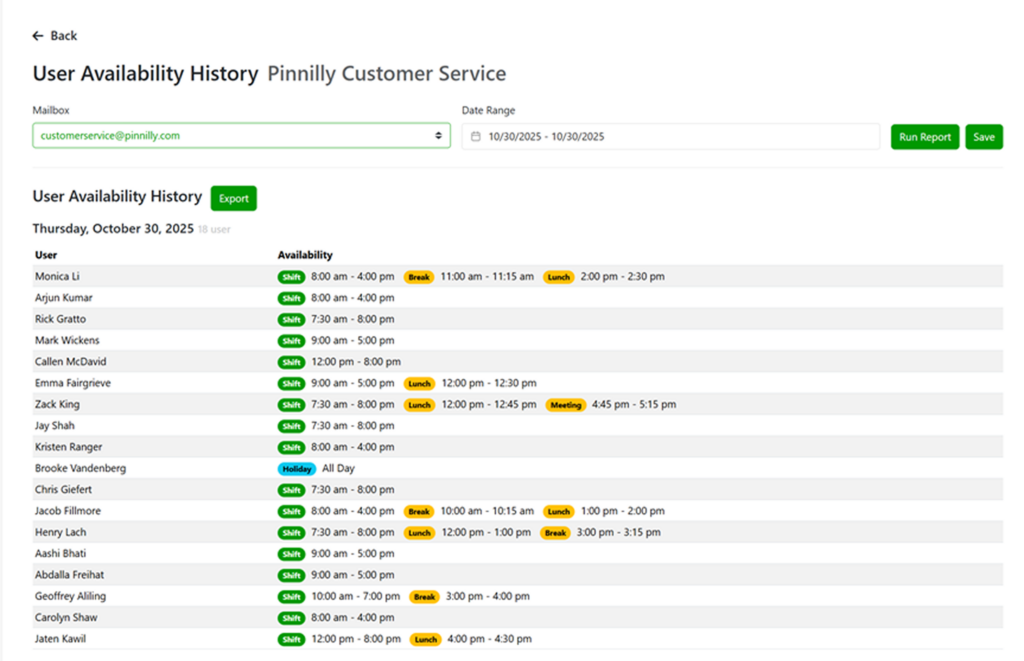
Key Metrics & Details
Mailbox
Select the mailbox to view user availability history.
Date Range
Choose a historical range (past days, weeks, or months) to analyze previous availability.
User List
Displays all users associated with the mailbox, along with their recorded availability periods.
Availability Events
The following events may appear in the report:
- Shift: Hours during which the user was scheduled to work.
- Break: Designated break times.
- Lunch: Lunch periods.
- Holiday / PTO / Vacation / Appointment: Time away from work.
- Manual Availability: Periods where the user manually set themselves as available or unavailable.
How to Access
- Log in to the Emailgistics Portal.
- Go to Reports → User Availability History.
- Select your Mailbox and desired Date Range.
- Click Run Report to view past availability data.
- Use the Export option to save the report for further analysis.
Practical Use Case
Coverage Planning
Ensure all hours are staffed and identify overlap or gaps.
Historical Audit
Verify when users were available or unavailable for accurate SLA tracking.
Performance Correlation
Compare user performance trends to their actual working or available hours.
Time-Off Validation
Confirm that users’ schedule data aligns with approved time-off records.
If you need any help or have any questions on the User Schedule or User Availability History Reports please reach out to [email protected].