


Overview
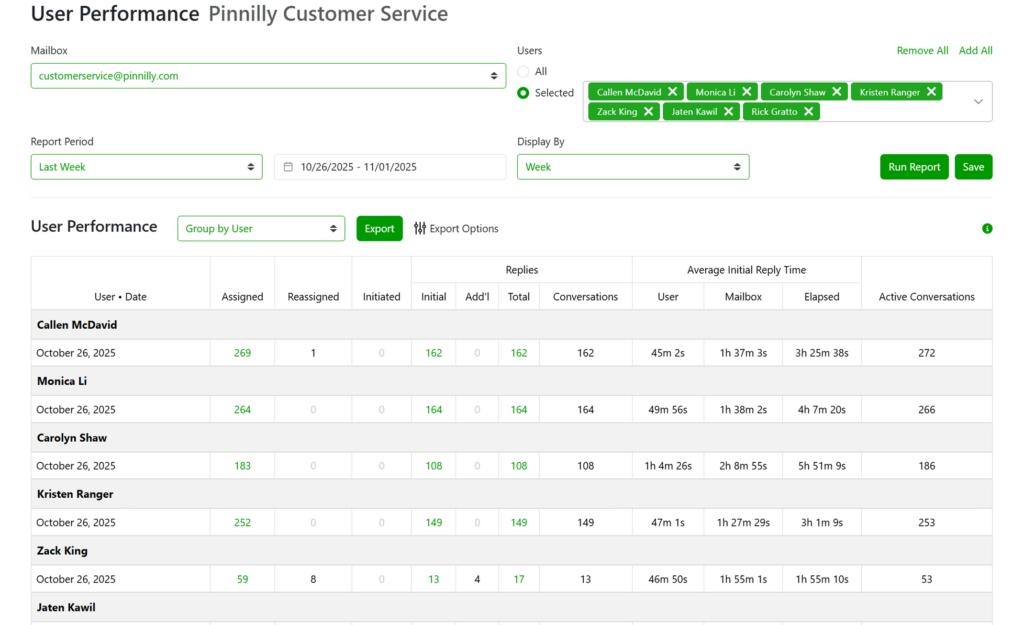
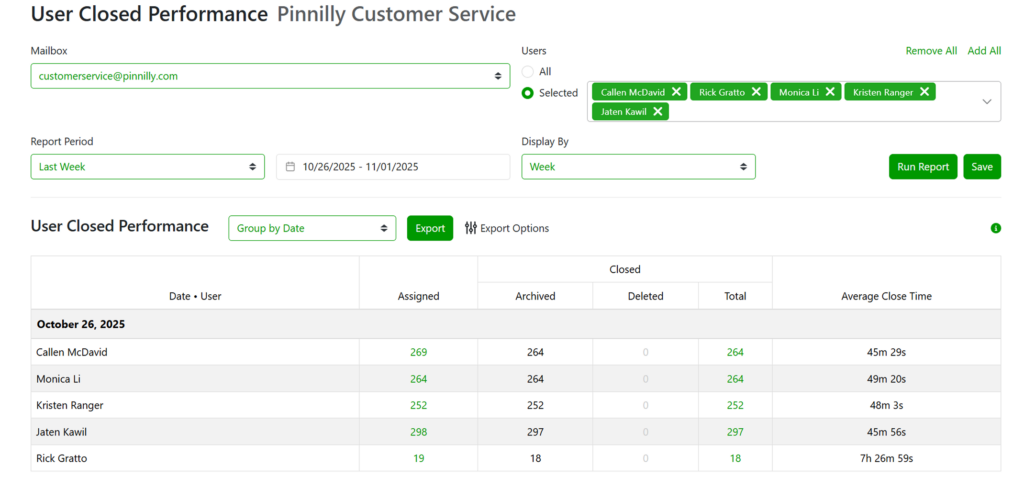
The User Performance Reports provide detailed insights into individual team member performance within shared mailboxes. There are two separate reports available:
- User Performance (Reply-Based) – focuses on user responsiveness and reply activity.
- User Closed Performance – focuses on how quickly users close messages once assigned.
Both reports allow you to filter by mailbox, select specific users or include all users, and adjust the date range and display format (daily, weekly, or monthly). These reports give a comprehensive view of how effectively each team member contributes to shared mailbox management and customer communication.
Why It Matters
The User Performance Reports are essential for evaluating how each team member handles message volume and responsiveness.
With this data, managers can:
- Track individual reply and close times.
- Identify high performers and areas needing additional support.
- Evaluate workload balance across the team.
- Measure SLA compliance by user.
- Pinpoint where training or process adjustments may improve performance.
These insights enable data-driven coaching and operational improvements that lead to faster responses, better collaboration, and improved customer satisfaction.
Purpose
The reports are designed to provide clear visibility into individual performance metrics, making it easier to manage workloads, measure efficiency, and ensure consistent service levels across all team members.
User Performance (Reply-Based)
Overview
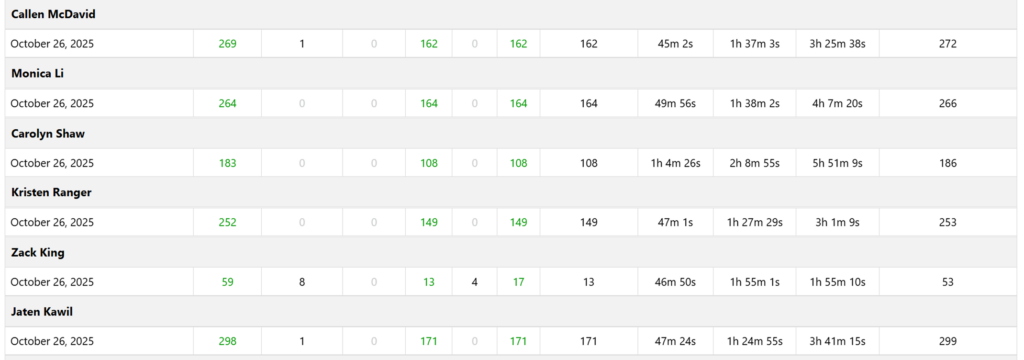
This report tracks all reply activity per user, showing how many messages were assigned, replied to, or reassigned during the selected period. It also provides average reply times based on user, mailbox, and elapsed time.
Key Metrics
Assigned
The total number of message assignments made to the user.
Reassigned
The number of messages taken away from the user (reassigned to someone else or returned to the Inbox).
Initiated
The number of new messages sent by the user that were not replies, but instead initiated as new conversations.
Replies
Initial
The number of first replies the user sent to assigned messages. This includes messages assigned in earlier periods but replied to during the selected period.
Additional
The number of follow-up replies beyond the initial reply.
Total
The combined total of all replies (initial + additional).
Conversations
The number of unique conversations involved in the user’s replies. A higher number typically indicates fewer back-and-forth messages, suggesting efficient communication.
Average Initial Reply Time
User
Time from when a message was assigned to when the user sent the initial reply, counting only when the user was available according to their schedule.
Example
Assigned at 8:00 AM, replied at 10:00 AM, user schedule starts at 9:00 AM → 1- hour user reply time.
Mailbox
Time from when the message was received until the reply was sent, counting only mailbox open hours.
Example
Message received Sunday 9:00 AM, replied Monday 8:00 AM, mailbox opens at 7:00 AM → 1-hour mailbox reply time.
Elapsed
Total time (including off-hours) from message receipt to reply. Example: 23 hours elapsed reply time.
Active Conversations
The total number of conversations involved in all user activity — assignments, reassignments, replies, and initiated messages.
User Closed Performance
Overview
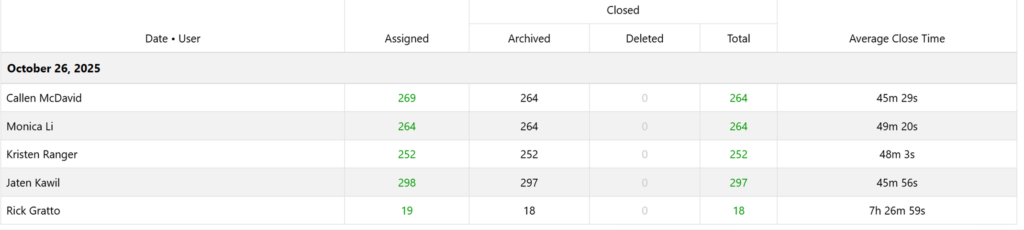
The User Closed Performance Report provides visibility into how efficiently users close messages assigned to them, by either archiving or deleting. This data helps track resolution speed and completion rates per user.
Key Metrics
Assigned
The total number of messages assigned to the user during the reporting period.
Closed
Archived
The number of messages closed by archiving (via drag/drop to Archive, pressing Backspace, or using the Emailgistics add-in).
Deleted
The number of messages closed by deleting (via drag/drop to Deleted Items or pressing Delete).
Total
Total messages closed (Archived + Deleted).
Note
Messages closed by dragging to other folders are not included in the count.
Average Close Time
The average time it took the user to close messages, measured from when the message was assigned until closure. Only counts when the user was available based on their schedule or manual availability setting.
Example
A message received Sunday at 9 AM and replied Monday at 8 AM counts as 1 hour mailbox time, or 23 hours elapsed. Assuming mailbox schedule is set 7:00 am – 9:00 pm Monday to Friday.
Example
Assigned at 8:00 AM, closed at 10:00 AM, user schedule starts at 9:00 AM → 1- hour user close time.
How to Access
- Log in to the Emailgistics Portal.
- Navigate to Reports → User Performance or Reports → User Closed Performance.
- Select your Mailbox.
- Choose specific users or all users.
- Set your Report Period and Display By options (Day, Week, or Month).
- Click Run Report to view the charts and tables.
- Use Export to download data for analysis or presentation.
Practical Use Cases
Individual Performance Tracking
Compare how quickly each user replies to or closes messages.
SLA Accountability
Identify whether individual response or closure times meet organizational goals.
Team Coaching
Use performance insights to coach users or recognize high achievers.
Workflow Optimization
Evaluate workload distribution and adjust assignment rules to improve efficiency.
If you need any help or have any questions on the user performance reports, please reach out to [email protected].