


Outlook Shared Mailbox Management: Native Outlook vs Outlook + Emailgistics
Managing shared mailboxes in Outlook
If you’re a small team managing a shared mailbox in Outlook you can usually get by using built-in tools and workarounds — adding initials to subject lines to show ownership, replying internally with “I’ll take this,” or manually moving emails into personal folders. But as volume increases, those manual systems become harder to maintain.
Outlook’s shared mailbox lets your team see and send from the same inbox, but it can’t assign messages, balance workloads, or warn you before an SLA breach. Reporting is also limited — beyond what you can see in Sent Items or a custom Power BI build, Outlook offers no built-in analytics.
In this post, you’ll see a side-by-side comparison of managing a shared mailbox in Outlook alone versus Outlook with Emailgistics, including:
- Assignments and email ownership
- Rules and automation
- SLA tracking and alerts
- Conversation continuity and history
- Reporting and analytics
- Staying in the Outlook environment
Assignments and email ownership
With Outlook alone
In a busy shared Outlook mailbox, assigning emails depends on manual workarounds: dragging messages into folders, tagging them with color categories, or adding Follow Up flags as reminders. These methods require constant attention, as Outlook has no built-in “assign to user” feature.
For example, you can assign emails using color categories, but it still requires active monitoring. Even with Outlook Rules, it doesn’t establish true ownership — and with a 25 color limit per mailbox, larger teams quickly outgrow the system.
With Outlook and Emailgistics
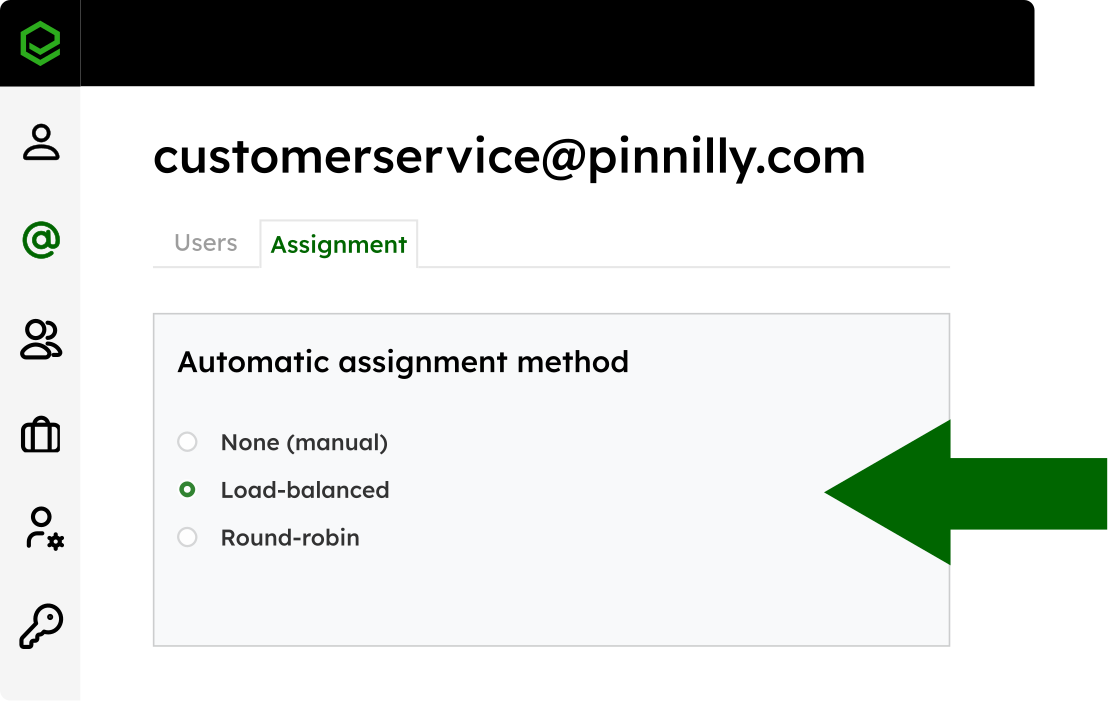
Emailgistics assigns incoming messages to a specific agent automatically, using either a round-robin or load-balanced method. The round-robin method distributes new emails evenly among all eligible users in order of their user ID creation date, while the load-balanced method assigns them to the team member with the fewest active messages.
If your team’s workload is relatively consistent, round-robin is a good fit. If it fluctuates — such as during seasonal peaks — the load-balanced option helps maintain efficiency. Either way, every email has a clearly defined owner, reducing the risk of missed or duplicate replies.
Rules and automation
With Outlook alone
Outlook lets you create rules to move or tag messages to folders, but Outlook Rules are basic and require maintenance. They can’t decide who should handle an email or deliver it to an individual’s mailbox.
For example, you might create a rule that moves anything with “support” in the subject line to a shared Customer Service folder. From there, someone still has to open that folder and manually pick up a message.
Rules can’t balance workloads, enforce ownership, or pause distribution when someone’s out of office, leaving managers to constantly monitor and redistribute work.
With Outlook and Emailgistics
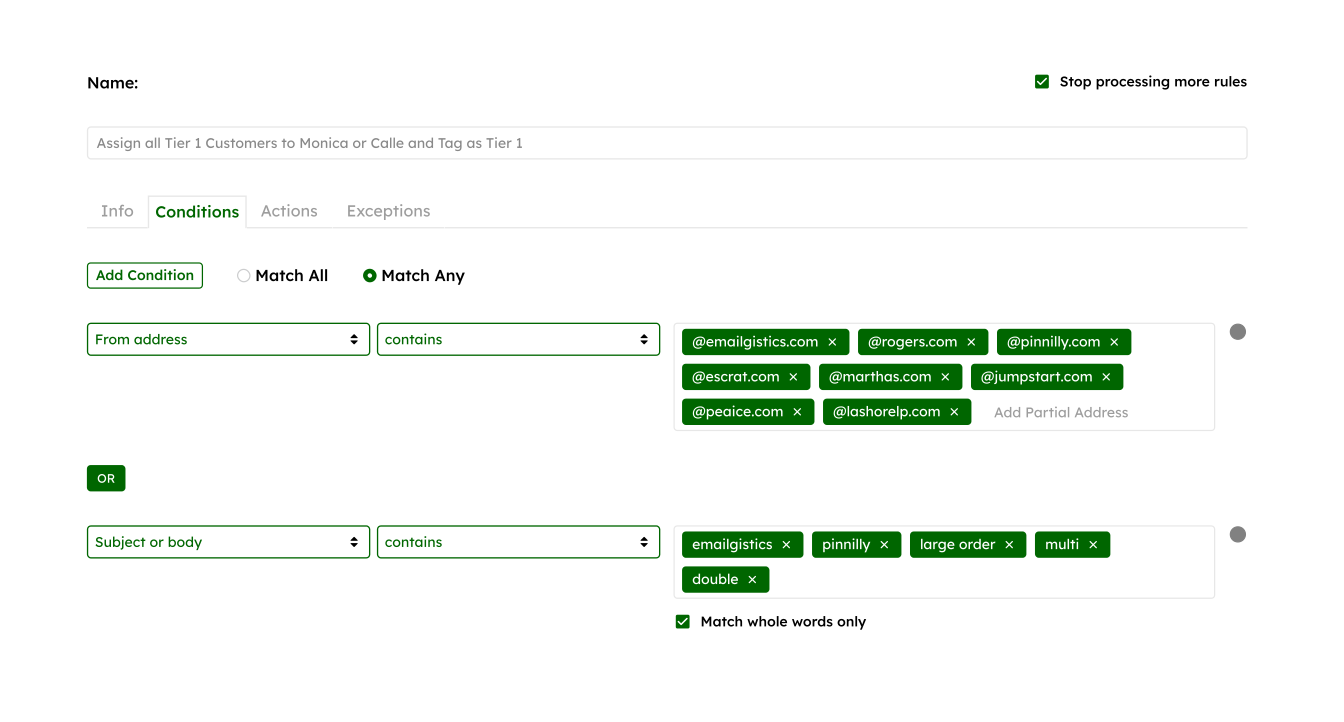
Emailgistics expands Outlook’s rules into a fully automated routing system. You can build rules to automatically route messages to specific users or teams based on criteria such as sender address, domain, subject keywords, or message content. Examples include:
- Route emails containing “claim” or “incident” to your Claims group.
- Assign emails from a client email domain directly to a specific account manager.
- Tag incoming emails with custom labels or categories for easier tracking.
- Trigger an automatic reply acknowledging receipt during weekends or peak hours.
- Automatically archive messages once they’re resolved or meet specific criteria.
Each rule follows a hierarchy of configurable conditions and exceptions, so messages route intelligently without manual sorting or supervision.
Combined with Emailgistics’ round-robin or load-balanced assignment methods, these routing automations make sure every email lands in the right hands.
SLA tracking and alerts
With Outlook alone
Outlook has no SLA tracking or timers. In practice, teams sort the mailbox by “Received” time, flag messages manually, or check Sent Items to confirm whether someone replied.
Managers often keep separate spreadsheets or message their teams in Teams or Slack to see what’s still waiting, then manually reassign older emails as they start to pile up.
With Outlook and Emailgistics
Emailgistics lets you define reply- and close-time SLA targets per mailbox and visualize compliance in real time. Dashboard gauges display live metricssuch as Inside Reply SLA and Inside Close SLA — showing the percentage of messages within your defined response and resolution thresholds, so you can instantly see where your team stands against targets.
You can also set alerts — for example, notify supervisors when a message waits too long without a reply — enabling proactive reassignment before a breach. During busy periods, you can trigger automatic “expectation” replies (“We’ll need a bit longer today”) to maintain transparency with customers.
Conversation continuity and history
With Outlook alone
In a shared Outlook mailbox, context often gets lost in scattered CC chains, forwarded threads, or people’s memories. Outlook doesn’t link related messages as a single “case,” so when a customer replies days later or changes the subject line, it often shows up as a brand-new email.
Without a built-in place for internal notes, you might find yourself forwarding messages to teammates or relying on verbal updates, leading to confusion when multiple people handle the same conversation.
With Outlook and Emailgistics
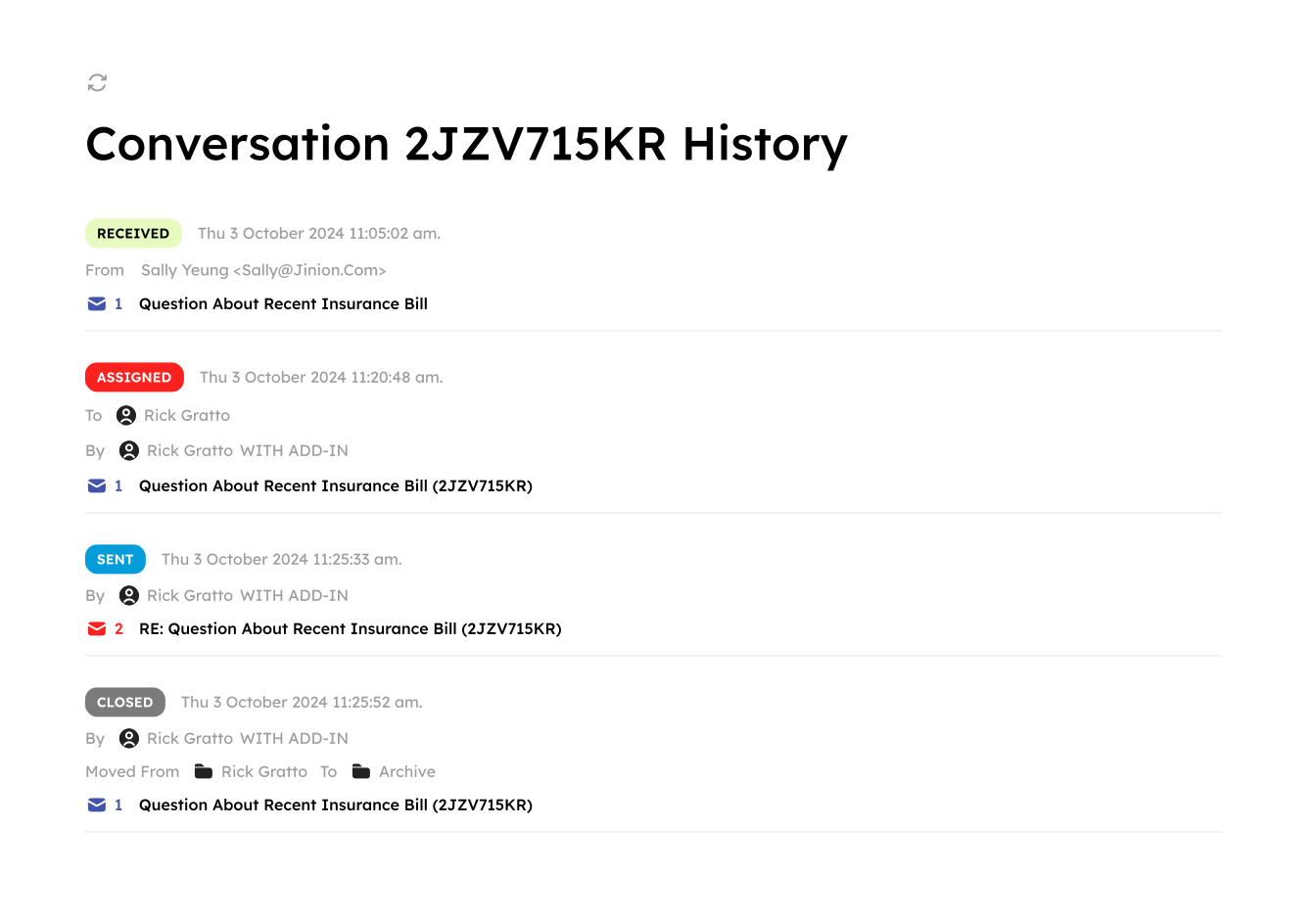
Every conversation in Emailgistics gets a unique Conversation ID — a permanent identifier that follows the thread from the first message until it’s closed. Even if a customer replies weeks later or changes the subject line, that reply is automatically linked back to the original conversation, keeping the full history together.
Each thread also supports internal notes, so your team can leave private comments or handoff instructions directly within the conversation. When ownership changes, those notes and the entire message history stay attached.
Managers can audit or review any exchange end-to-end by Conversation ID, seeing exactly who owned it, when it was reassigned, and how it was resolved. Every message stays connected, and every handoff stays accountable.
Reporting and analytics
With Outlook alone
Outlook doesn’t provide team-level reporting on shared mailbox performance. You can see unread counts or scan folders, but you can’t answer questions like “How many emails are still unassigned?”, “What’s our average reply time today?”, or “Who’s falling behind?”
Without a custom Power BI setup, reporting relies on spot checks — such as opening the mailbox, sorting by received time, and making educated guesses about performance.
With Outlook and Emailgistics
Emailgistics provides both real-time dashboards and historical performance reports for complete visibility. Dashboards refresh every minute and surface at-a-glance metrics like unassigned messages, open items, oldest message age, SLA compliance, and average reply times by user or mailbox.
For deeper analysis, performance reports track metrics like initial reply time, close time, and SLA compliance over any selected date range. Bucketed reports group responses into time intervals to help identify trends, and all data can be exported to Excel for further analysis.
Staying in the Outlook environment
With Outlook alone
Due to the limitations in managing shared mailboxes in Outlook, teams may eventually turn to ticketing or helpdesk tools for structure.
The problem is that those platforms often require learning new workflows, switching interfaces, and changing how your team communicates with customers — something that can slow adoption and frustrate users who prefer to stay in Outlook.
With Outlook and Emailgistics
Emailgistics works directly inside Outlook as a Microsoft 365 add-in, so your team continues working in the same mailbox they already know. There are no new logins or external systems — everything happens inside Outlook’s familiar interface to minimize training time.
Behind the scenes, Emailgistics follows Microsoft’s highest security and compliance standards. All data stays within Microsoft’s cloud. The platform is SOC 2 Type II-certified and fully compliant with GDPR and HIPAA. Your workflow improves, but everything remains protected within your Microsoft 365 environment.
Native Outlook vs. Outlook with Emailgistics: At-a-glance comparison
CapabilityJust OutlookOutlook + Emailgistics****Assignments & ownershipManual tagging, drag emails to foldersAuto-assign (round robin or load-based)Routing & rulesBasic rules, route only to group foldersSmart rules, team and individual routingSLA trackingNo SLA tracking capabilityConfigurable and trackable SLA reply and close timesAlerts & notificationsNo alerting capabilityReal-time alerts based on user-defined thresholdsReporting & analyticsNo team-level visibilityLive dashboards with historical dataConversation continuityNo built-in handoff to teammatesLinked threads with full conversation historyInternal notesNot supportedNotes stay within each email threadAdoption & usabilityOutlook environment without workflow toolsSame Outlook interface, enhanced team workflow
If your shared mailbox already lives in Outlook, replacing it isn’t necessary. Adding Emailgistics simply builds on Outlook’s capabilities — giving you the structure, visibility, and automation Outlook alone doesn’t provide.
Want to see how Emailgistics can help your team stay on top of every request and ahead of every deadline? Book a demo today and try Emailgistics free for 14 days.
1. Does Emailgistics replace Outlook or integrate with it?** **Emailgistics is an add-in that integrates directly into Outlook. Your team continues to work inside the same Outlook environment — no new platform, logins, or training required.
2. Can Emailgistics assign emails automatically to specific people?** **Yes. Incoming emails can be automatically assigned using round-robin, load-balanced distribution, or routed by rules to specific individuals or teams based on sender, keywords, or content.
3. How does Emailgistics handle out-of-office or vacation coverage?** **You can set user schedules, define backup assignees, and create rules that automatically reassign work when someone is unavailable — so coverage happens without manual intervention.
4. What kind of reports and metrics can managers see?** **Managers get live dashboards showing unassigned messages, average reply times, SLA compliance, and historic performance trends across mailboxes or teams — refreshed every 60 seconds.
5. Is Emailgistics secure?** **Yes. All data stays within Microsoft’s cloud environment. Emailgistics is SOC 2 Type II certified and fully compliant with GDPR and HIPAA, using Microsoft Graph API for secure authentication.