


Outlook reporting isn’t built for shared inboxes. Here’s the ‘in-Outlook’ fix
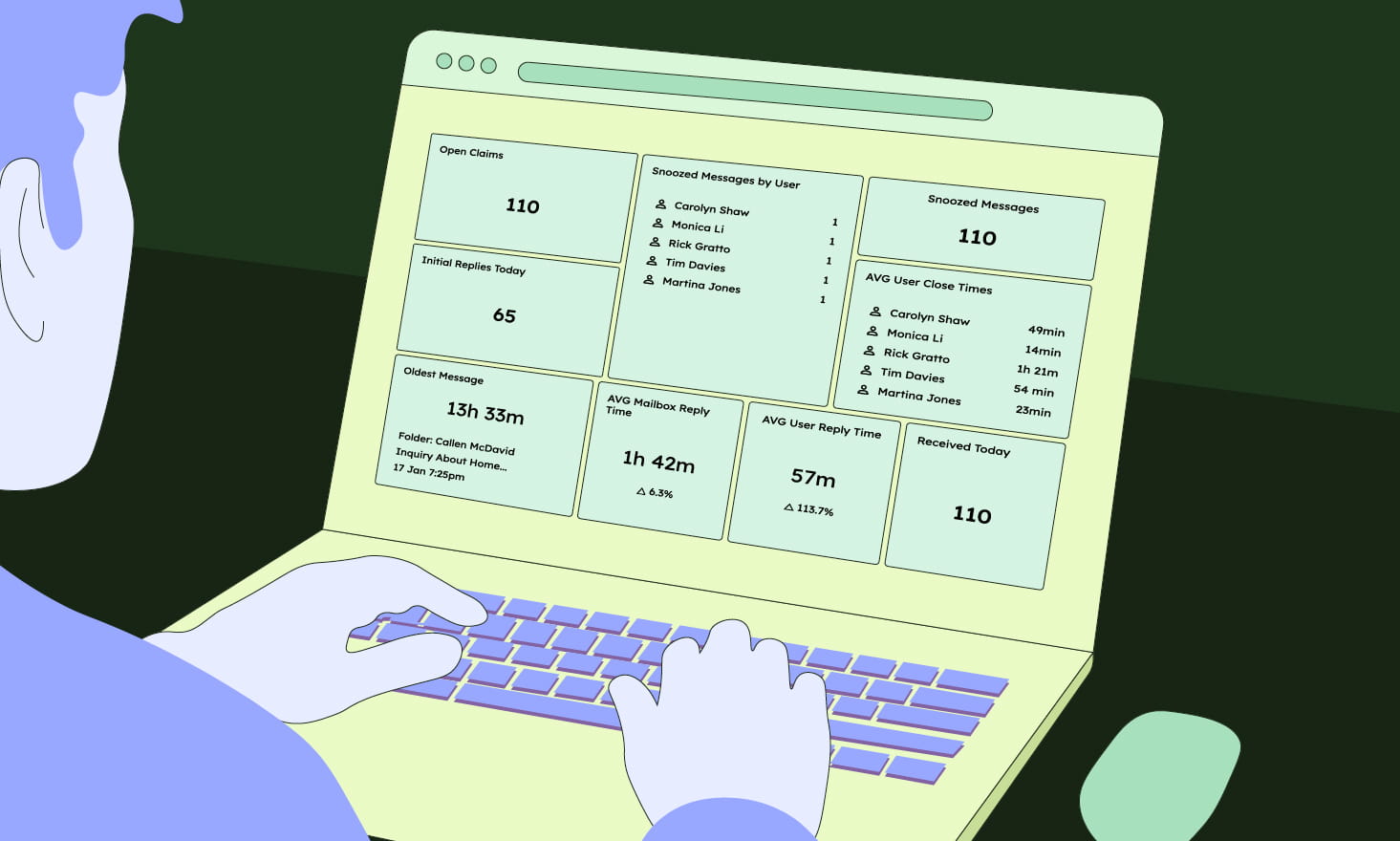
Nearly 33% of customers expect organizations to respond to emails in one hour or less. Do you know how fast your team actually responds?
Why Outlook alone won’t give you shared mailbox reporting
If you’re a team running a shared Outlook mailbox, you’re judged on response time, wait time, and SLA performance. But when looking at native Outlook shared mailbox management capabilities, one of the biggest gaps is reporting — Microsoft 365 doesn't give you shared mailbox reporting for reply times or user-level productivity. At best, you’re stitching together rough counts and doing manual checks to see how your team is performing.
When response performance isn’t visible inside Outlook, problems stay hidden until customers complain or SLAs are missed.
In this article, you’ll learn how Emailgistics adds an in-Outlook reporting layer to your shared mailbox, so you can see performance without leaving Outlook and make improvements based on real data.
Emailgistics mailbox reports: See how your shared mailbox is really performing
Mailbox reports show how your shared mailbox is doing as a whole — volume, reply speeds, SLA performance, and patterns by customer or tag.
Mailbox Performance report: Volume, reply time, and SLA in one view
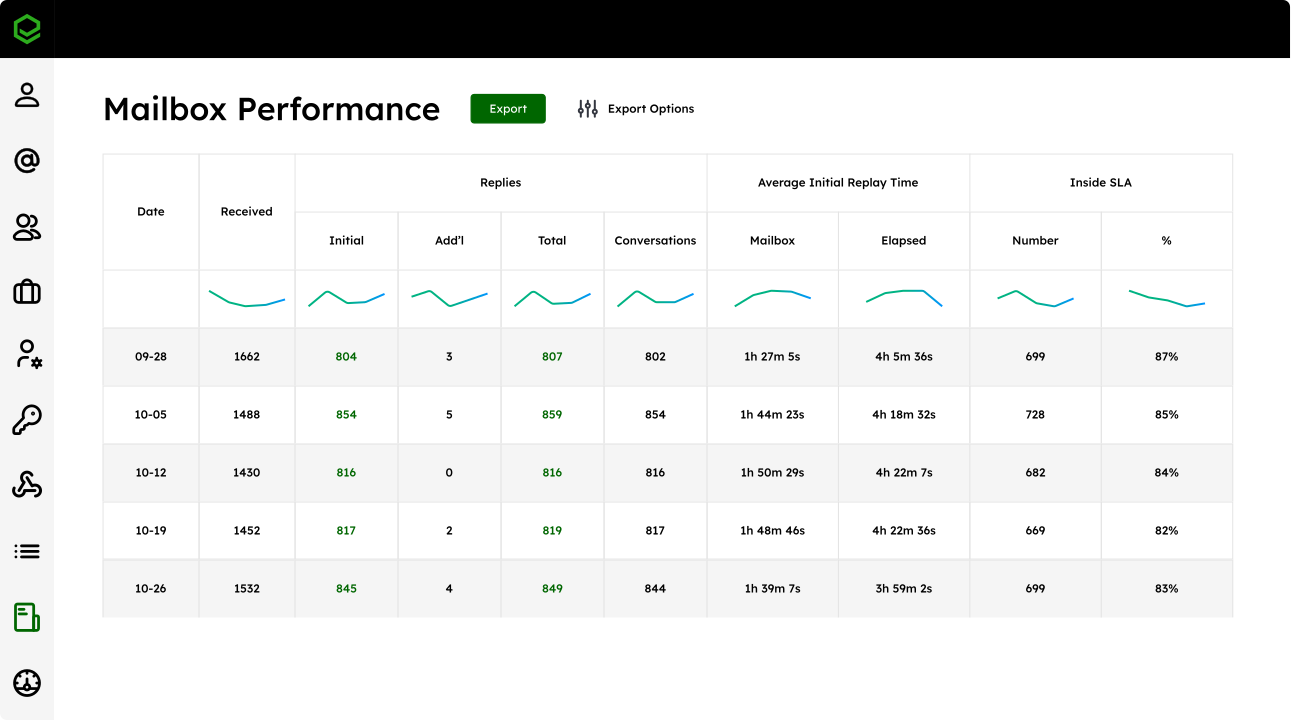
The Mailbox Performance report is your team-level health check. It shows how your shared mailbox is performing so you can see whether you’re keeping up with demand and actually meeting your SLAs.
Here are the key insights you get:
- Volume and reply trends: See how many messages the mailbox received in a period and how reply times are trending, so you can spot and plan for busy periods.
- Mailbox reply-time metrics: See average initial reply time during defined business hours and elapsed time (24/7) to understand how fast your team is responding to that first email.
- SLA tracking: Set a reply-time SLA (for example, two hours) and see how many messages landed inside or outside that threshold and the percentage you’re hitting, so you can prove performance or tighten SLAs with data.
- Drill down for a deeper view: Get more granular to see which messages missed SLA and why — whether it’s assignment delays, sheer volume, or a specific user.
Mailbox Tag Performance report: Focus on what’s truly a priority
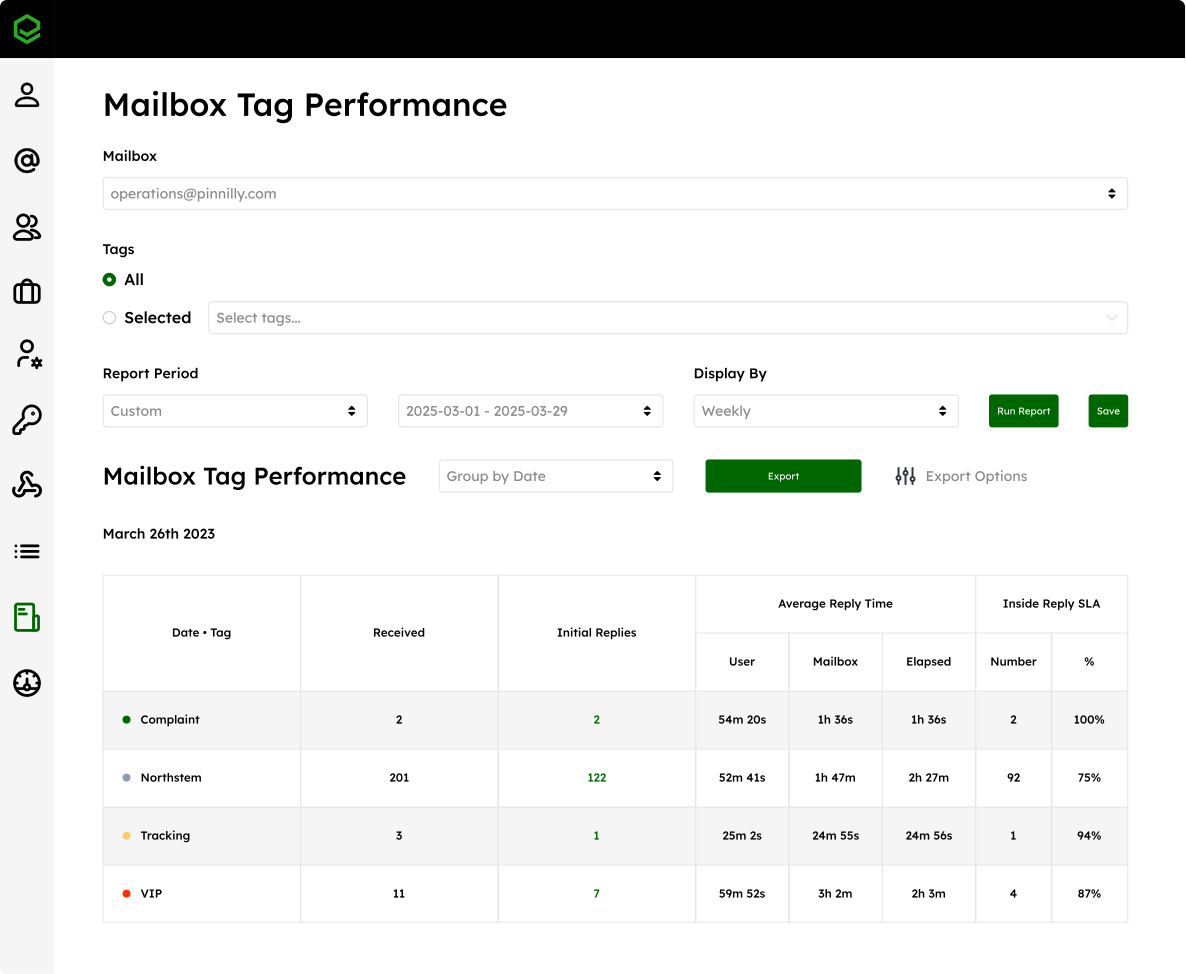
Tags in Emailgistics let you custom label messages by type — urgent, VIP customers, event projects, quoting requests, and more. The Mailbox Tag Performance report turns those labels into targeted metrics.
For each tag, you can see:
- How many tagged emails you received.
- Average reply and close times for those messages.
- Whether you’re meeting tighter SLAs for high-priority tags.
That means you’re not just hitting an overall SLA — you can confirm that truly time-sensitive emails (like live events or urgent support cases) are being handled faster than routine work.
Domain and Bucketed Performance reports
Two additional mailbox reports give you more targeted insights:
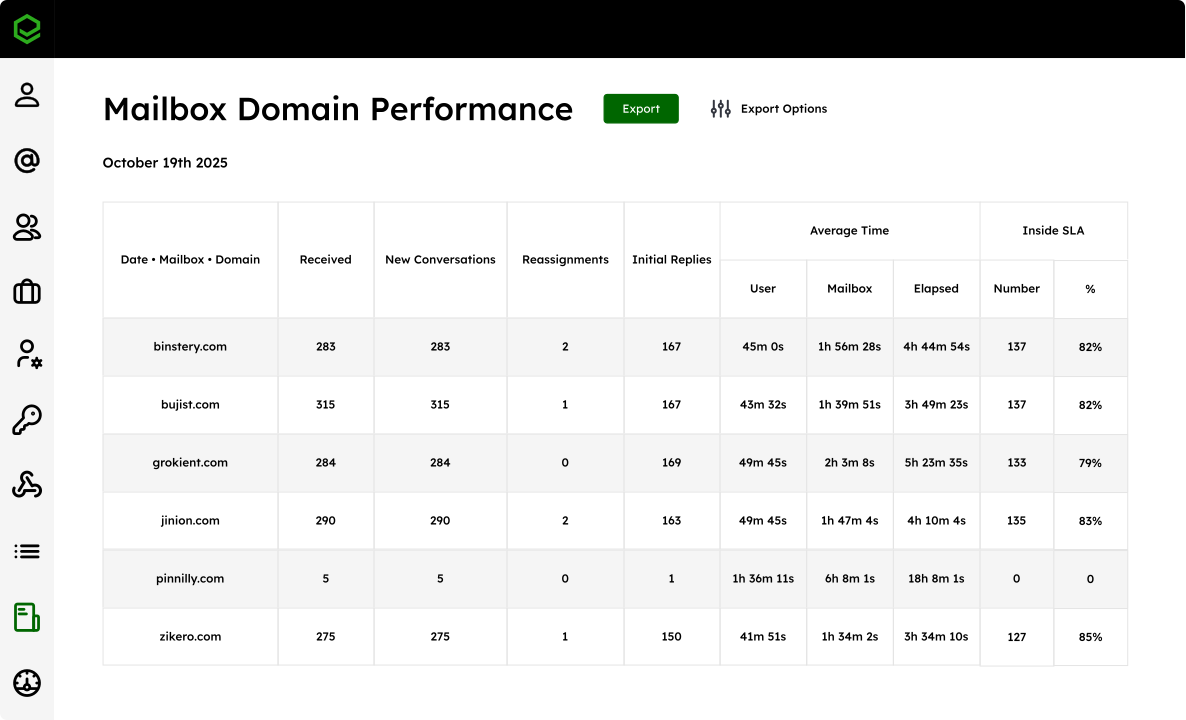
- Mailbox Domain Performance shows which email domains contact you most, what your reply times look like for each, and how many messages are new conversations vs. ongoing threads. This report gives you a simple way to spot higher-maintenance customers who generate lots of back-and-forth, helping you decide how to adjust your process for them.
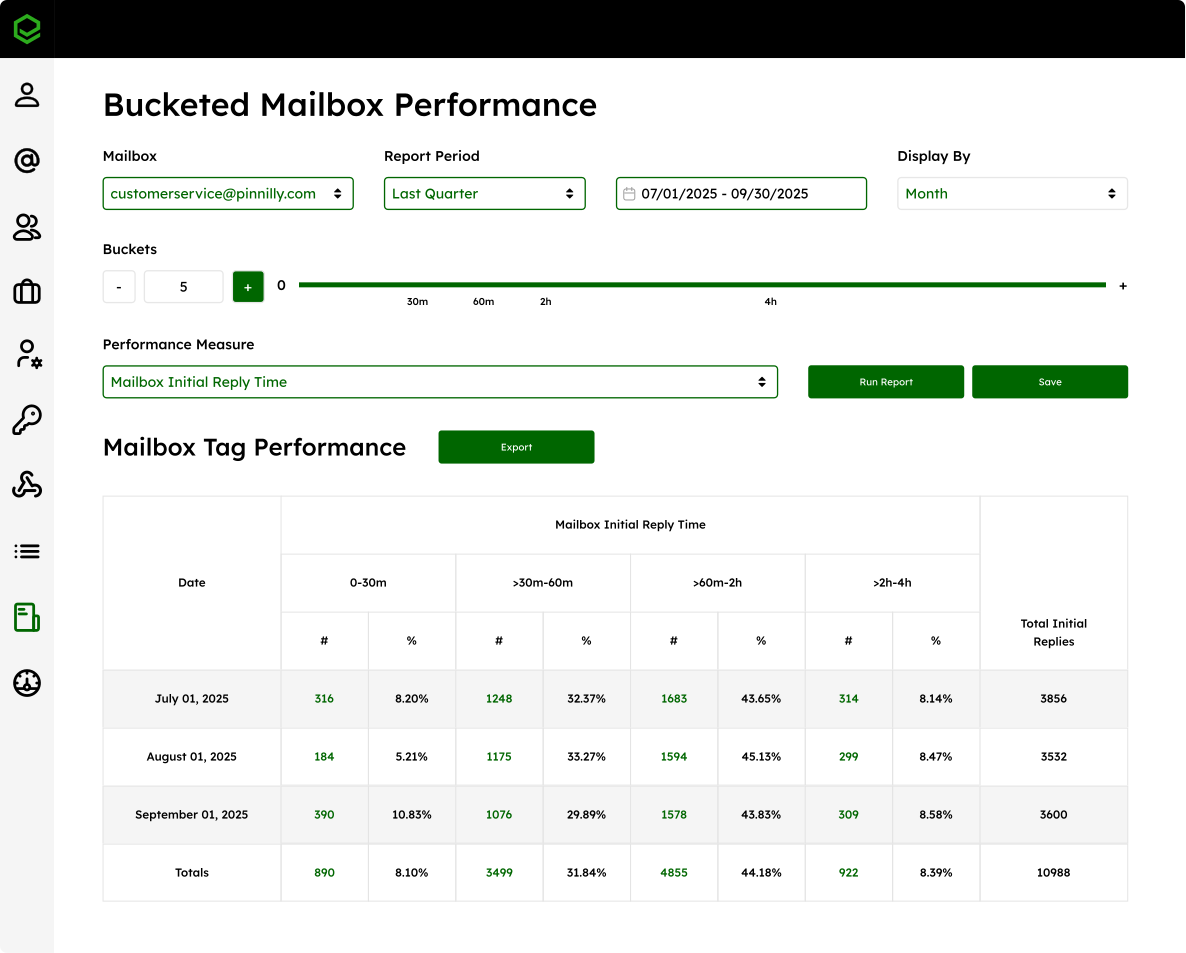
- Bucketed Mailbox Performance groups reply times into time buckets — for example, 0–30 minutes, 30–60 minutes, 60 minutes–2 hours, and so on. This lets you see what percentage of emails are answered within each time window. You can use this to find your SLA “sweet spot.” For instance, the report might tell you that 85% of emails are answered within two hours. This means you can safely move from a 24-hour SLA to a two-hour SLA — giving you a competitive edge.
User Reports: See individual performance
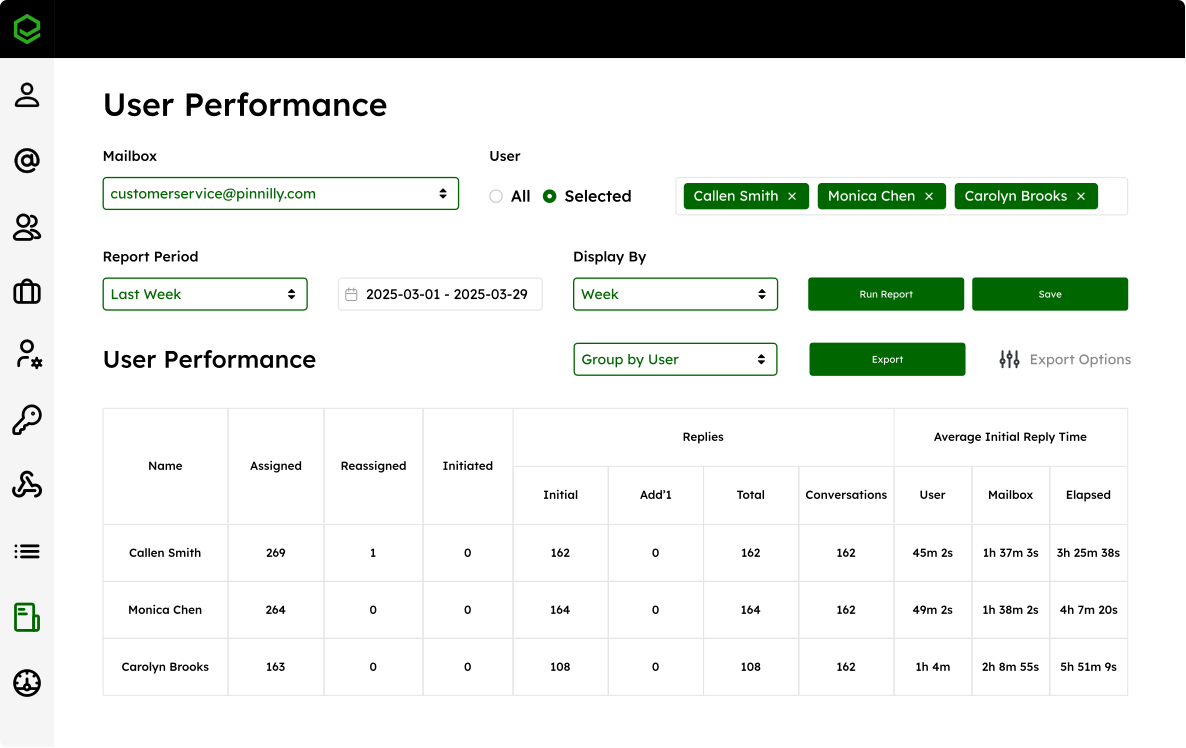
**User Performance **reports show how each person in your shared mailbox is performing, so you can manage fairly, fix issues quickly, and create clear coaching opportunities.
These reports help you:
- **Get a clear snapshot of each agent: **Like the mailbox performance reports, you see key metrics like email volume, response times, close times, and active conversations on an individual agent level.
- **Use it for real-world management: **This makes it easy to spot who’s overloaded, who’s consistently fast, and where follow-ups or coaching are needed — and to back up resourcing requests with data.
- **Get metrics Outlook can’t provide: **Even if you invested months building complex Power Automate or AI flows, you’d still only get mailbox-level data. User Performance gives you that per-agent view right inside Outlook.
Reporting API: For teams with more complex reporting needs
If you’re an enterprise team with a data or BI function, the Reporting API lets you take things further.
At a high level, it lets you:
- Pull Emailgistics metrics into your BI stack – Feed shared mailbox and user performance data into tools like Power BI or your data warehouse.
- Combine email performance with other channels – for example, blending inbox metrics with CRM, call center, or product data to build a single operations view.
For teams with established reporting flows, the Emailgistics Reporting API gives you direct, flexible access to shared inbox data so you can model and report on it your own way. This matters most for organizations that already track performance across channels and need email to be part of the same operational picture.
Get clear reporting on your Outlook shared inbox
If you can’t see how fast your team is responding, which customers are waiting, or whether you’re meeting your SLAs, it’s hard to improve performance or justify changes.
Emailgistics provides you with mailbox and user-level reporting on key metrics so you can better manage your team and drive performance — all inside Outlook.
Book a demo to see your Outlook shared mailbox reporting in action. Start a 14-day free trial, no credit card required.