


How to Assign Emails in an Outlook Shared Mailbox: Native Outlook vs. Emailgistics
Assignment workarounds: How teams assign emails in an Outlook shared mailbox
If your team is working in an Outlook shared mailbox, you have three options to assign an incoming email to an agent:
- Color categories: Tag the message with a color tied to a person to imply ownership. It’s visible to everyone, but easy to miss and doesn’t prevent someone else from replying.
- Follow-up flags: Add a personal reminder so you don’t lose track. Flags don’t signal ownership to the team and they don’t lock the conversation — anyone can still respond.
- User sub-folders: Drag the email into a person’s folder to “assign” it. Outlook treats this as simple filing, with no tracked ownership or history, so reassignment and reporting stay manual.
These workarounds can get you through at low volumes, but they require extra time and effort — and, more importantly, they don’t establish true ownership. Two people can still reply, categories are easy to miss, and customer replies often re-enter the inbox uncategorized. That’s how collisions, duplicate replies, and missed emails creep in — even with diligent managers.
This post explores how Emailgistics establishes clear ownership with automatic assignments and seamless handoffs, all inside Outlook.
Emailgistics: Clear ownership, automatic distribution within Outlook
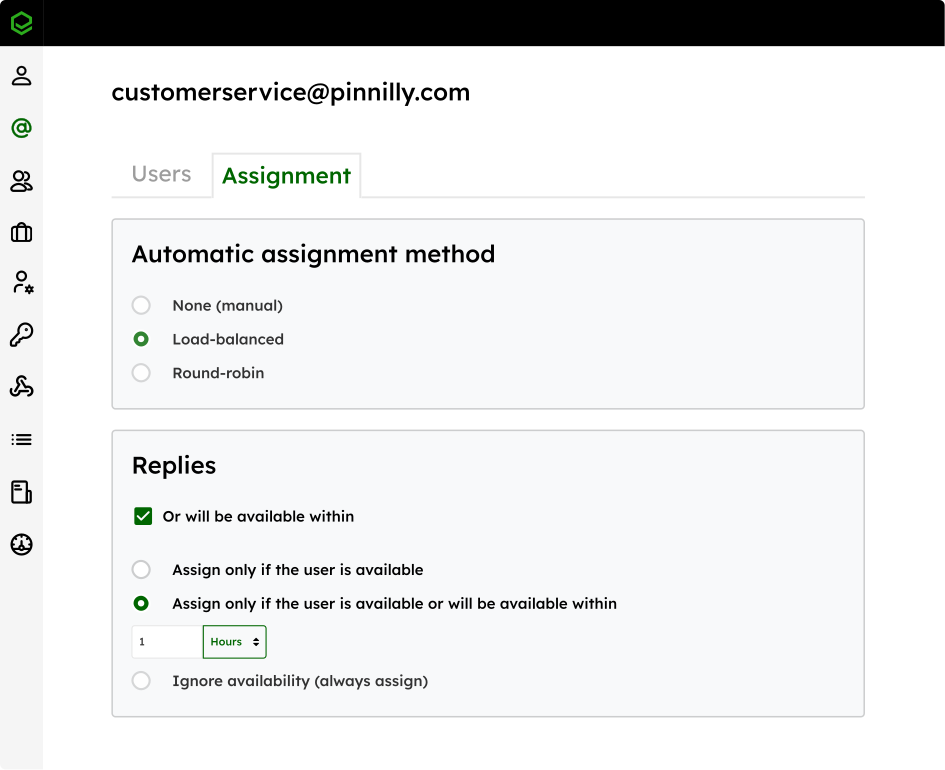
With Emailgistics, you can automatically assign incoming emails to one clear owner — or keep manual control when needed. Either way, everyone can see ownership right inside Outlook. When you do use auto-assignment, it’s availability-aware, so messages skip anyone who’s off shift or marked unavailable.
Round-robin
With round-robin assignment, messages rotate through your eligible users in order, based on their internal user IDs (the order they were created). It’s a simple, predictable system that keeps things fair without requiring manual dispatching. Distribution won’t always be perfectly even — it doesn’t guarantee that each user will have the same number of messages — but everyone gets a steady flow of new work.
Load-balanced
Load-balanced assignment takes into account your team’s workload. Instead of following a fixed rotation, each new message goes to the eligible user with the fewest currently assigned emails in that shared mailbox. If there’s a tie, Emailgistics assigns at random. This helps keep workloads even during high-volume periods or when message complexity varies across the team.
Rules-based assignment
For teams with specialized workflows, you can add routing rules on top of auto-assignment. Rules let you direct specific messages — based on sender domain, keywords, or mailbox hours — to the right person or sub-team before the round-robin or load-balanced logic runs. You can also use “Backup assignees” so high-priority messages route to a designated backup when the primary assignee isn’t available. Combined with features like “Assign to previous owner” and “Unassign at end of schedule,” this keeps continuity strong and coverage predictable.
Manual assignment
Drag and drop to your agents’ folder inside the shared mailbox to assign manually. It’s simple, creates clear ownership that everyone can see, and avoids the ambiguity of Categories/Flags — without leaving Outlook.
Make it easy to hand off and track emails
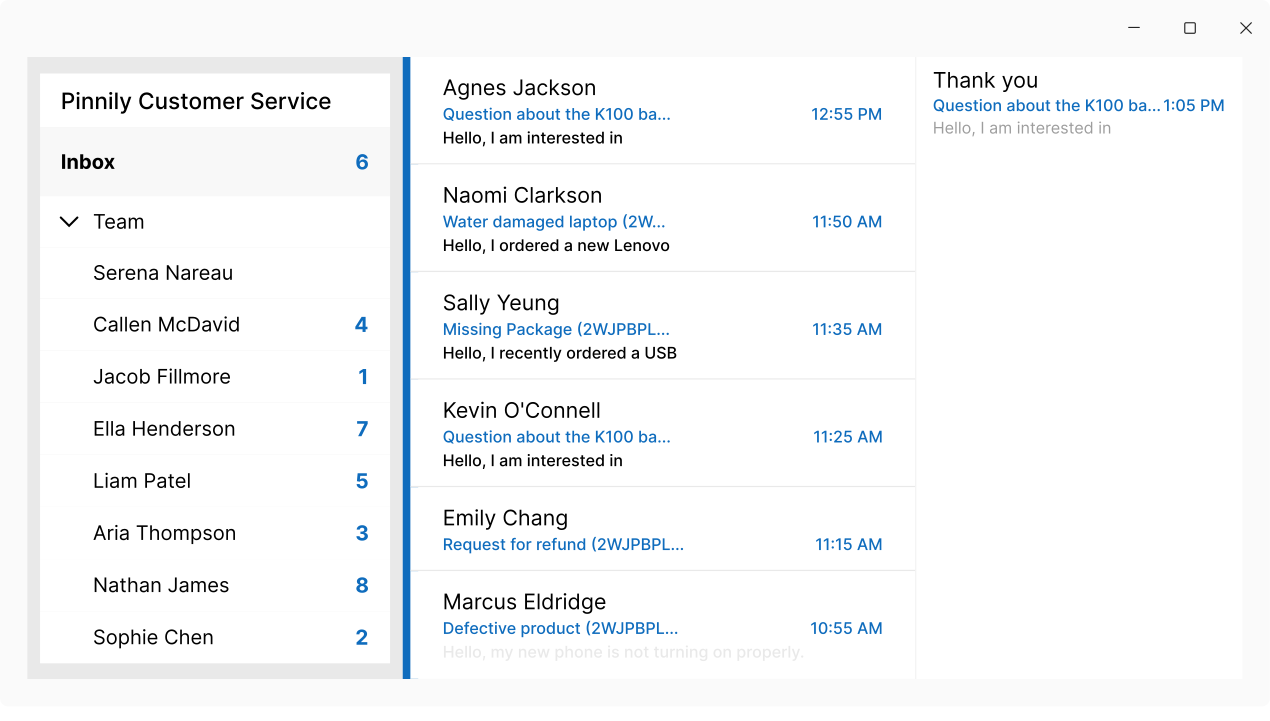
Once a message lands with an owner, you need continuity: replies should go back to the right person, open items shouldn’t stall at a shift change, and every action should be traceable.
Emailgistics builds email handoff and tracking into Outlook so no message gets lost and your customers get timely responses.
- Assign to previous owner: When a customer replies, the thread routes straight to the last person on your team who handled it — skipping the general queue. That preserves context, prevents duplicate replies, and keeps the customer working with the same agent. If the situation changes, you can always reassign with one click.
- Unassign at end of schedule: When your agent goes off shift with open items, those conversations can automatically return to the team queue based on their schedule/availability. Nothing gets stuck with an unavailable owner, and the on-duty team picks up where things left off.
- Conversation ID & History: Each thread receives a unique ID and a searchable history showing assignments, reassignments, and timestamps. You can even append the ID to the subject line for easier tracking across folders and views. This creates a reliable audit trail for QA, coaching, and reporting — so you can quickly answer “who handled what, and when?”.
Quick look: Outlook vs. Outlook with Emailgistics
What you need****Outlook (Categories/Flags/Folders)Emailgistics in OutlookExclusive ownershipLabels imply ownership, but don’t enforce it; collisions happen.One accountable owner per message; visible in your shared mailbox.Automatic distributionManual drag-and-drop or a human dispatcher.Round-robin or load-balanced auto-assignment — with manual assignment when you need it.Rules routingLimited and non-scalable.Rules by domain, keywords, hours, or sender to a person or sub-team.Availability awarenessNone — work can land on people who are away.Considers team schedules; skips offline agents.Reply continuityReplies arrive as new, untagged messages, breaking assignment continuity.“Assign to previous owner” routes replies to the last handler.Backup assigneeNo built-in backup routing; urgent emails rely on manual monitoring.“Backup assignees” auto-route priority messages to designated backups.Shift handoffOpen items stay with off-shift users unless someone manually reassigns them.Open items auto-unassign at shift end so the on-duty team can pick them up.Audit & historyContext scattered across Sent/Inbox; limited traceability.Conversation ID and full history per thread.
See automatic email assignment in your Outlook shared mailbox
If you want to see automatic assignment, clear ownership, and reliable reply continuity working inside your Outlook shared mailbox, book a demo with the Emailgistics team.
After the demo, you can try it free for 14 days and see the impact on your shared mailboxes before you commit.